
In this article, I will talk about the best apps for working from home which help professionals remain productive, connected, and organized while working remotely.
These include apps for communication, collaboration, project management, file sharing and time tracking that help streamline daily work,
Enhance collaboration, and foster flexible work arrangements for freelancers, remote workers, and expanding distributed teams across all sectors in the world.
Key Points & Best Apps for Work From Home
| App | Key Point |
|---|---|
| Zoom | Video meetings and virtual collaboration |
| Microsoft Teams | Integrated chat, calls, and file sharing |
| Slack | Streamlined team communication channels |
| Google Workspace | Docs, Sheets, and cloud collaboration tools |
| Trello | Visual project management with boards and cards |
| Asana | Task tracking and workflow organization |
| Notion | All‑in‑one workspace for notes and projects |
| Evernote | Powerful note‑taking and idea organization |
| Dropbox | Cloud storage and file synchronization |
| Toggl Track | Time tracking for productivity and billing |
10 Best Apps For Work From Home
1. Zoom
While remote meetings via Zoom offer a versatility and professionalism unmatched by other tools, it really excels in high quality video, screen sharing, and break out rooms, as well as several other paricipatory collobration tools.
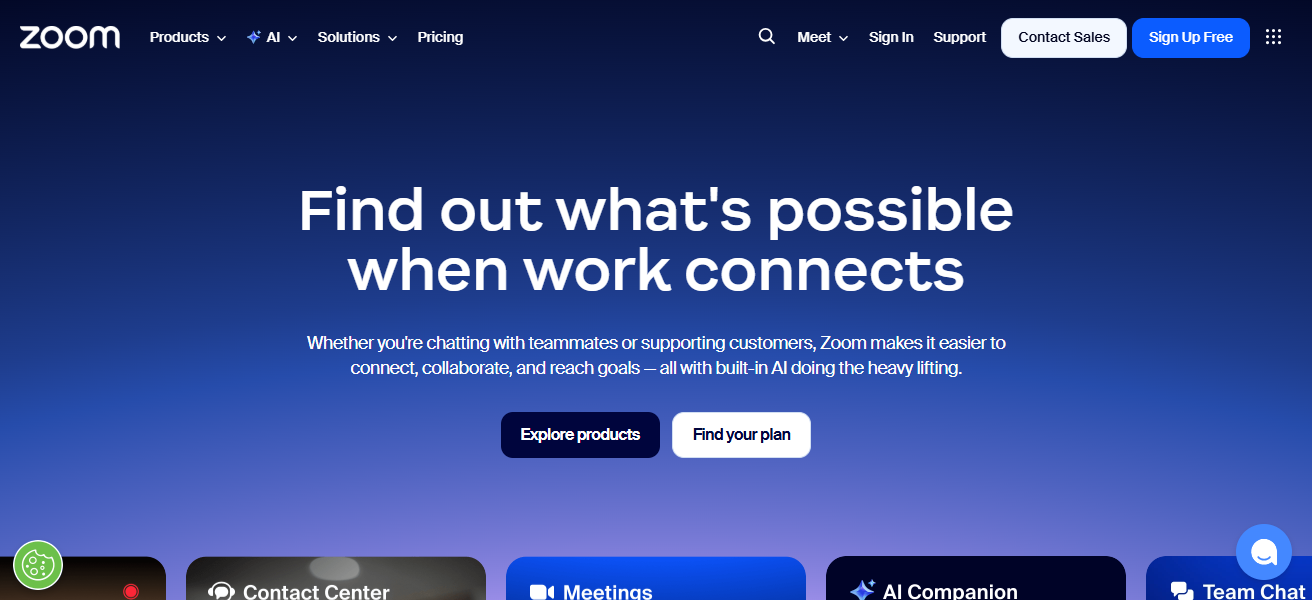
Zoom is easy to use, and makes joining, scheduling, and recording meetings a smooth process. Whether team meetings, client meetings, or even webinars,
Zoom is a great video conferencing tool due to its dependability and flexibility. For remote teams, Zoom is great for realtime interaction and workloads.
Zoom Features
- High Quality Video & Audio – With the help of screen sharing and group collaboration views, you can have meetings in top quality.
- Meeting Controls – For added security, the host can mute other participants, set passwords, and control the waiting room.
- Breakout Rooms – For more intimate discussions and workshops, you can divide larger meetings into smaller ones.
- Recording & Transcripts – Meetings can be recorded and stored in the cloud or on your device, and for later reference transcripts can be generated.
| Pros | Cons |
|---|---|
| Simple and intuitive for video meetings | Can use a lot of bandwidth, causing lag on slow connections |
| Supports large group meetings and webinars | Free version has time limits on group calls |
| Breakout rooms allow small-group collaboration | Requires regular updates to fix security issues |
| Recording and transcription help with review | Some advanced features require paid plans |
| Works across devices (mobile, PC, tablet) | Occasional security vulnerabilities reported |
2. Microsoft Teams
Microsoft Teams is invaluable for remote work since it integrates chat, meetings, file sharing, and collaboration into a single service.
Because it is integrated with Microsoft 365, users can collaborate in real time on Word, Excel, and PowerPoint documents.
Persistent channels and threaded conversations keep communication in the same context, helping to reduce email clutter.
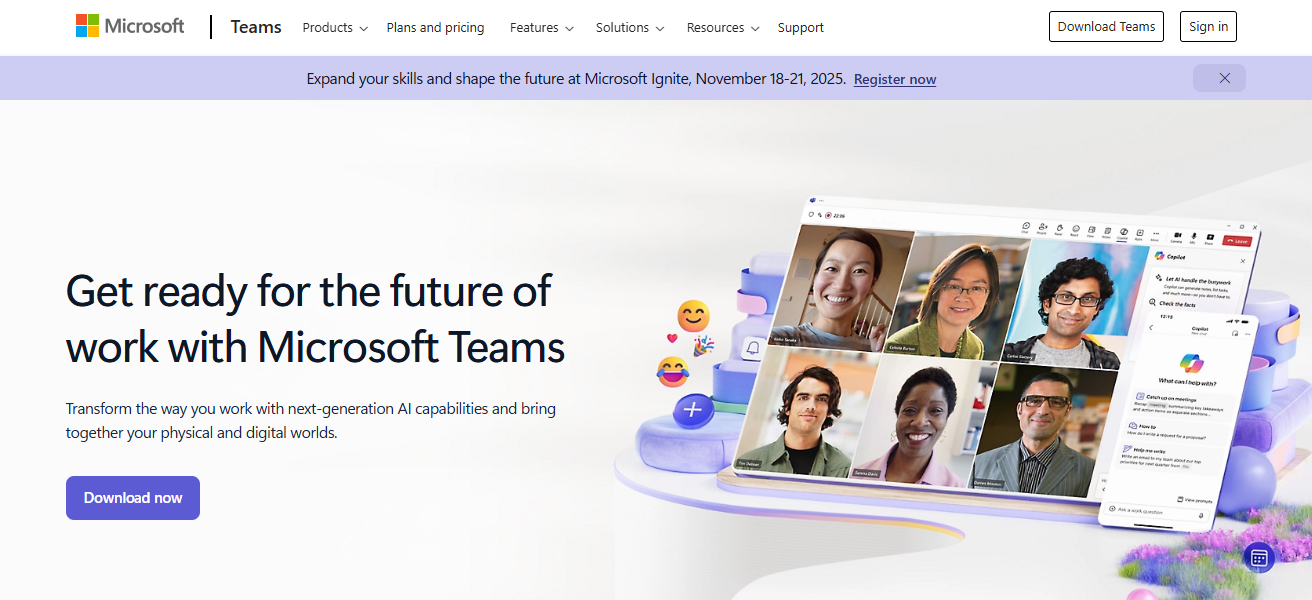
Users can stay connected through voice calls, and video conferencing, while customizable notifications keep them informed.
Teams has built-in compliance and security features to protect sensitive corporate information. Teams also integrates with other apps to support custom workflows.
For users of Microsoft tools, Teams is a valuable addition for enhancing collaboration and productivity in remote work settings.
Microsoft Teams Features
- Chat & Channels – There are multiple channels available which can be topic based and within these channels you will have persistent messaging which can be searched.
- Integrated Office Tools – Directly on the platform, you can edit Office files such as Word, Excel, and PowerPoint.
- Video Meetings – Within the platform, you have the option for video meetings with screen sharing and the ability to set appointments from calendars.
- Custom Apps & Bots – You can add third-party apps and automated workflows which extend functionality.
| Pros | Cons |
|---|---|
| Seamlessly integrated with Microsoft 365 tools | Interface can feel cluttered for new users |
| Good for chat, calls, and collaboration in one place | Can be heavy on system resources |
| Persistent channels keep conversations organized | Occasional performance issues on low-end devices |
| Strong enterprise-level security | Requires Microsoft account for full use |
| Excellent file- and calendar-sharing | Advanced features may need paid license |
3. Slack
Slack is designed to keep remote teams organized and connected. It uses a channel- based structure, where team members can collaborate and communicate on designated projects, departments, or topics. This helps reduce clutter and improves focus.
Team members can share files, and access searchable histories in conversations. Slack integrates with tools like Google Drive, Trello, and Zoom to complete workflows without switching apps.
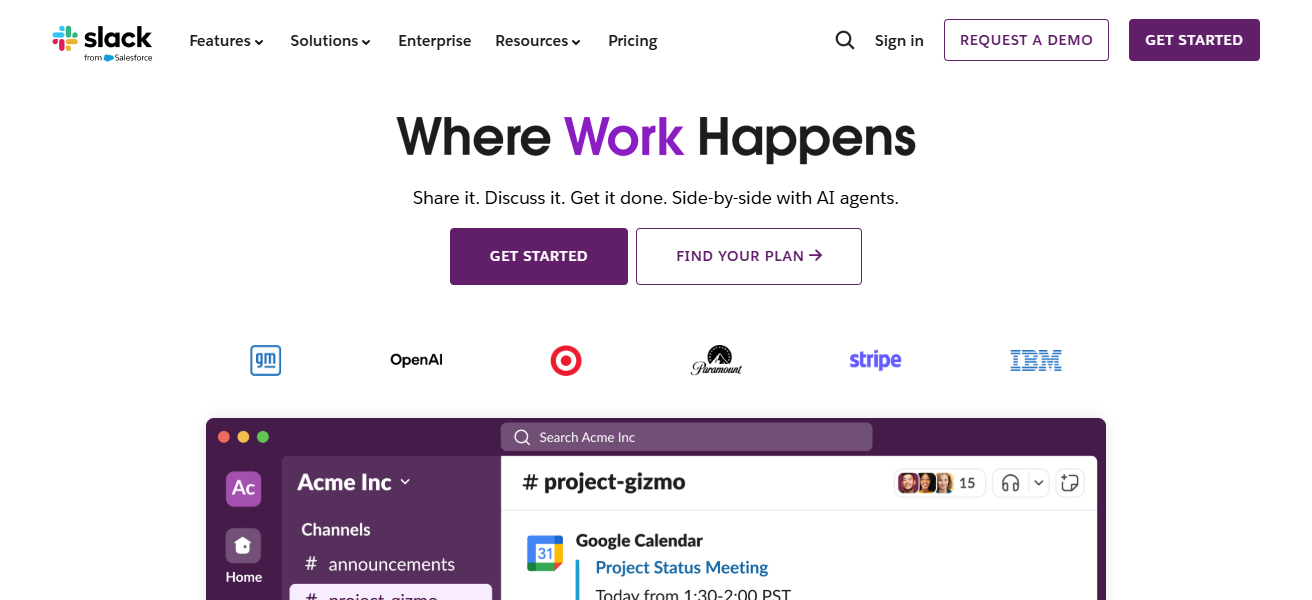
Slack uses custom workflows to automate repetitive tasks. Users can access priority notifications to manage tasks. Important conversations are saved with the use of thread features.
Voice and video call features support quick and deep collaborations. Slack improves and supports remote communication.
Slack Features
- Organized Channels – For higher clarity, conversations can be grouped by topic, project, or by team.
- Direct & Group Messaging – You have the option to send a message directly or send a group message to have larger discussions.
- App Integrations – You can integrate with other tools such as calendars, task managers, and cloud storage.
- Searchable History – Now, searching for older messages, files, and links in all channels is easier than before.
| Pros | Cons |
|---|---|
| Excellent real-time messaging | Can become noisy with too many channels |
| Powerful integrations with many tools | Limited message history in the free plan |
| Channel organization reduces email overload | Can be overwhelming if notifications aren’t managed |
| Quick file sharing and search | Not ideal as a standalone document editor |
| Easy to set up and navigate | Requires paid plan for advanced features |
4. Google Workspace
Collaboration is at the heart of Google Workspace, which integrates team-oriented functions into its suite of productivity apps, including Gmail, Docs, Sheets, Slides, and Drive.
Google Workspace helps smooth project work and helps remote team members stay connected. Real-time editing, commenting, change tracking, and cloud-based storage help with seamless collaboration, and the team can access files from any device.
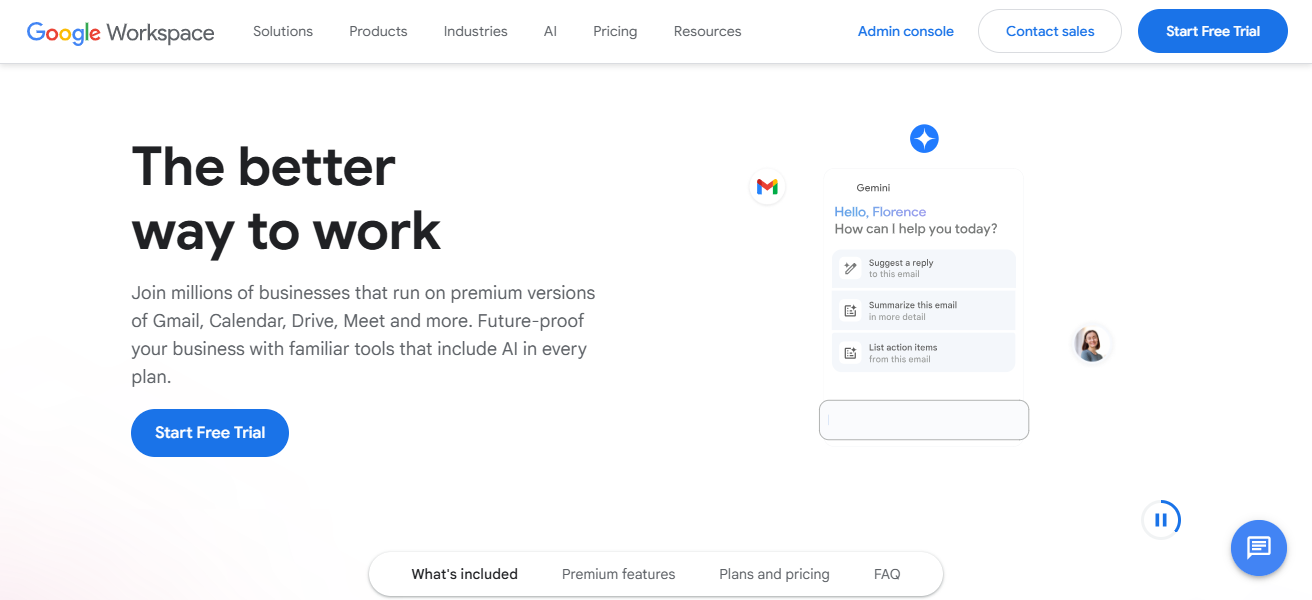
Video meetings with screen sharing, live captions, and recording help with communication, while file access permissions help with editing permissions.
Google Workspace is simple and effective, which is why many opt for its integration and low cost for remote work.
Google Workspace Features
- Cloud-Based Productivity Software – Users can create and share documents in the productivity software suite, which contains Docs, Sheets, Slides, and Drive.
- Real-Time Collaborative Editing – Real-time updates allow simultaneous editing by multiple users.
- Gmail & Calendar – Built-in email and scheduling allow for communication without leaving the platform.
- Google Meet – Integrated video conferencing that allows users to share their screens and chat.
| Pros | Cons |
|---|---|
| Real-time collaboration on docs/sheets | Some advanced features are less powerful than alternatives |
| Cloud storage and file access from anywhere | Paid subscription needed for business-level controls |
| Built-in video calls with chat and screen sharing | Offline use requires setup and can be limited |
| Easy sharing and permission management | Organization tools can be basic |
| Simple and familiar interface | May feel less customizable than other suites |
5. Trello
Trello uses a unique and highly user friendly system to help remote teams organize project tasks into boards, lists, and cards.
Each individual task is represented as a card, which can then be expanded to include detailed descriptions, checklists, due dates, colored labels, comments, and actual file attachments.
It is very easy to plan workflows by dragging and dropping cards to different sections within the boards. Each team member can customize their own boards for sprints, content calendars, hiring pipelines, and more.
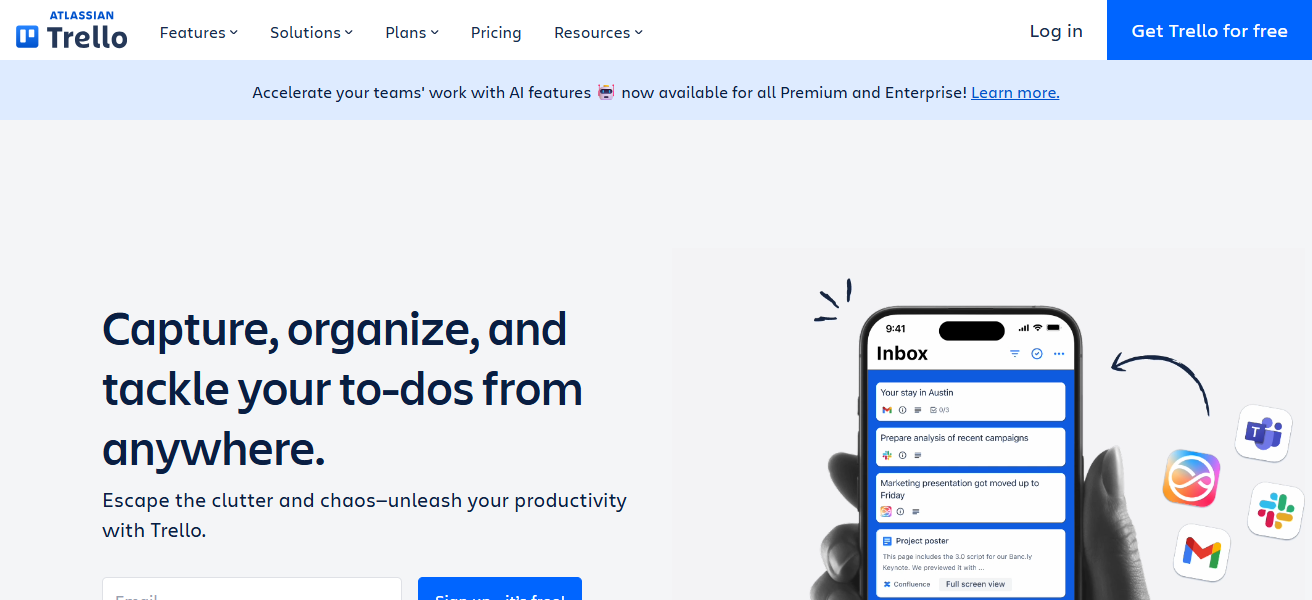
Power-ups let teams sync their other tools, such as Slack and Google Drive, to improve information centralization.
For remote teams, Trello improves accountability by making sure everyone clearly sees the available tasks, the tasks that are in progress, the tasks that are done, and the tasks that are still to be done. It is very easy to use, which makes it really easy to implement across the entire team.
Trello Features
- Boards and Cards – Organize and structure your workflow by using lists and cards on your boards.
- Drag and Drop – Move your tasks as you work on them to the different stages.
- Colored Labels and Subtasks – Organize your tasks with less and more work by adding subtasks and colored labels.
- Power-Ups – Add calendars, time tracking, and other features to your boards.
| Pros | Cons |
|---|---|
| Visual boards make project status clear | Not ideal for complex task dependencies |
| Easy and quick to set up | Limited reporting and analytics |
| Flexible for many workflows | Can get cluttered with many cards |
| Drag-and-drop simplicity | Advanced features require paid plan |
| Integrations expand usefulness | Less robust for large-scale project planning |
6. Asana
Asana provides an effective and comprehensive way for teams to manage their workflows. The software allows seamless planning, tracking, and execution of tasks, setting goals, and creating visual timelines.
Employees can choose to view their tasks in a list format or a kanban board, and remote workers can easily see their priorities and deadlines.
Managers can assign tasks to team members that include due dates, descriptions, and attachments, as well as include task dependencies.
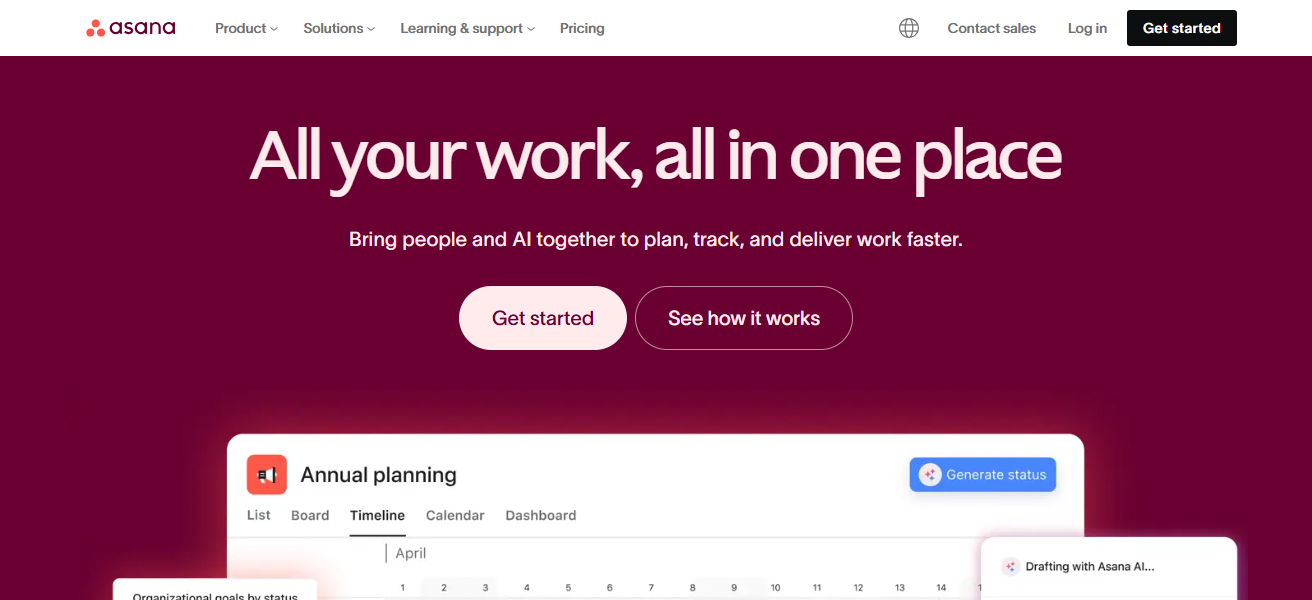
The reporting tool provides insight into the progress of the team and identifies any bottlenecks, allowing managers to provide assistance when needed.
Workflow integrations with Slack, Teams, and calendars are also available. Asana improves remote teamwork for complex projects.
Asana Features
- Different Views of Tasks & Projects – Use the list, board, timeline, and calendar to manage your workflow.
- Deadlines & Assignments – Set deadlines and priorities for teammates when assigning them tasks.
- Milestones & Dependencies – Show the order of tasks by linking them to each other and track important milestones for the project.
- Reporting – With visual dashboards, you can monitor your team and how much work has been done.
| Pros | Cons |
|---|---|
| Powerful project tracking and timelines | Can feel complex for simple task lists |
| Good for team accountability | Reports and dashboards limited in free tier |
| Multiple views (list, board, timeline) | Learning curve for new users |
| Dependencies link tasks logically | Some features require paid plan |
| Useful reminders and deadlines | Can feel overwhelming for small teams |
7. Notion
Notion integrates notes, documents, databases, and project planning in a single customizable workspace. Teams can use flexible pages to build custom trackers, task lists, knowledge bases, and wikis.
Remote workers can use a tailored workspace embedded with tables, calendars, media, and Kanban boards. Everyone can adjust in real time to see updates and version history details.
Notion has a variety of templates to quickly set up any document, from product roadmaps to meeting notes.
Centralized documentation and task tracking alignment goals and processes. Notion’s versatility is ideal for personal productivity and team collaboration.
Notion Features
- All-in-One Workspace – Workspace integrates notes, documents, data bases and task boards.
- Adjustable Templates – use and design templates for notes, wikis, and roadmaps.
- Connected Databases – Link tasks, contacts, and content calendars.
- Real-Time collaboration – Techmates can co-edit pages and see updates at the same time.
| Pros | Cons |
|---|---|
| Extremely flexible workspace | Setup can be time-consuming |
| Combines docs, databases, and task lists | Too powerful for users who want simplicity |
| Custom templates save time | Mobile experience can feel limited |
| Collaboration and real-time update | Learning curve for advanced features |
| Great for documentation and knowledge base | No built-in offline-first experience |
8. Evernote
Evernote is highly regarded as an excellent note-taking application for remote workers because it allows them to keep their thoughts, tasks, and notes in one place.
They can add text, images, voice memos, and files along with their notes and can organize everything in notebooks and with tags.
Evernote allows users to handwrite notes and still retrieve them using the advanced search feature. If users want to keep an email, article, or some other type of their research, they can use web clipping to save it to Evernote.
Their notes sync on all of their devices so they can access them anytime. Evernote is excellent for remote workers who balance multiple meetings, to-do items, and research and need to keep everything streamlined and sharable.
Evernote Features
- Detailed Note Taking – organize notes that contain texts, voices, photos and other attachments.
- Notebooks & Tags – easily retrieve and organize notes by sorting and categorizing them.
- Web Clipper – articles, research and other online snippets can be saved directly in your workspace.
- search – find notes quickly even in images and PDFs.
| Pros | Cons |
|---|---|
| Strong note organization with tags | Full-featured use needs paid plan |
| Search finds text inside images and PDFs | Sync limits on free plan |
| Easy capture of text, images, voice notes | Can feel like a simple note app without planning tools |
| Web clipping saves research content | Not ideal for project tracking |
| Works across many devices | UI feels outdated to some users |
9. Dropbox
Dropbox is a cloud storage service that is also useful for remote teams that need to collaborate and share files. Users can save and file their sensitive documents, images, videos, and other files and retrieve them anytime and from any device.
Team members can collaborate on documents in shared folders without having to send large files through email.
There are also features to recover files and view versions of files, which protects against losing files or making unintended changes.
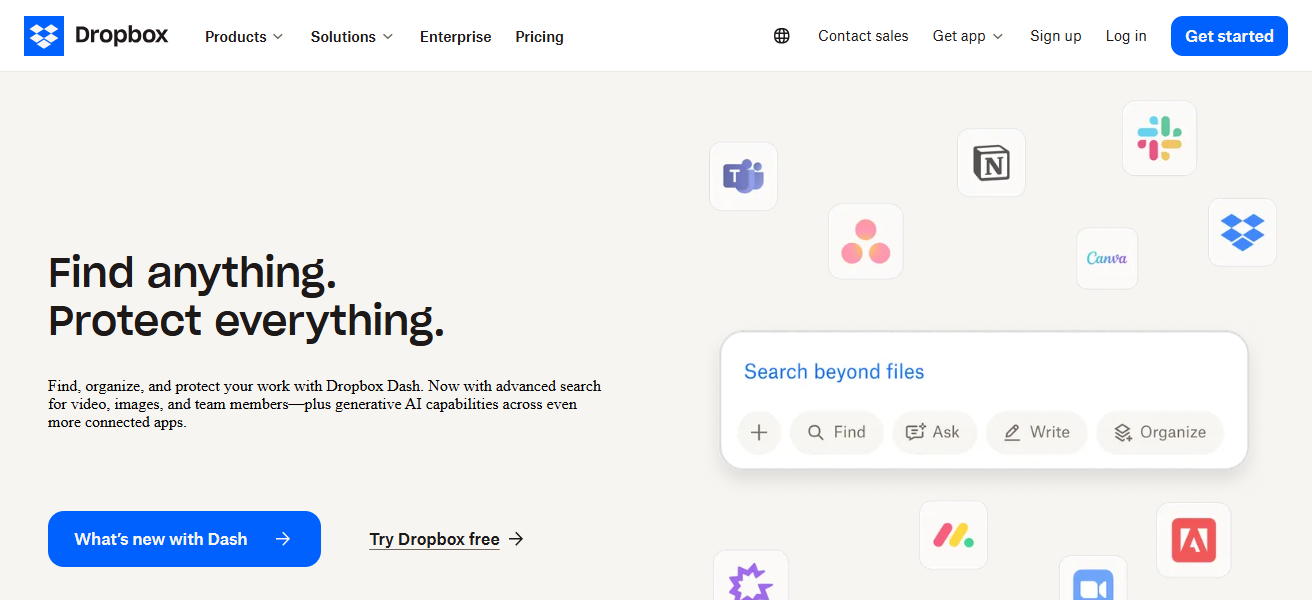
Dropbox works with Microsoft Office and Slack, which allows users to edit and share without changing from one service to another.
With great security and permission features, teams can control who can see or modify files. Dropbox keeps remote file management organized, dependable, and productive.
Dropbox Features
- Storage – access stored files from all devices.
- Device sync – everything is automatically changed on all devices.
- Shared files – edit and view ahres files and folders.
- Recovery – recover files and view their previous versions.
| Pros | Cons |
|---|---|
| Simple and reliable cloud file storage | Free storage is limited |
| Easy file sharing and syncing | Can be slower for large file syncing |
| File version history and recovery | Not ideal for real-time document editing |
| Works across many platforms | Some advanced controls in business plans |
| Keeps files safe and backed up | Competes with other large cloud storage options |
10. Toggl Track
Toggl Track is a time-tracking tool built especially for remote employees. Users create projects and utilize basic start/stop timers to track time spent on work assignments or deliverables.
After time logging, reports spell out time allocation to help self and management analyze productivity and inefficiency.
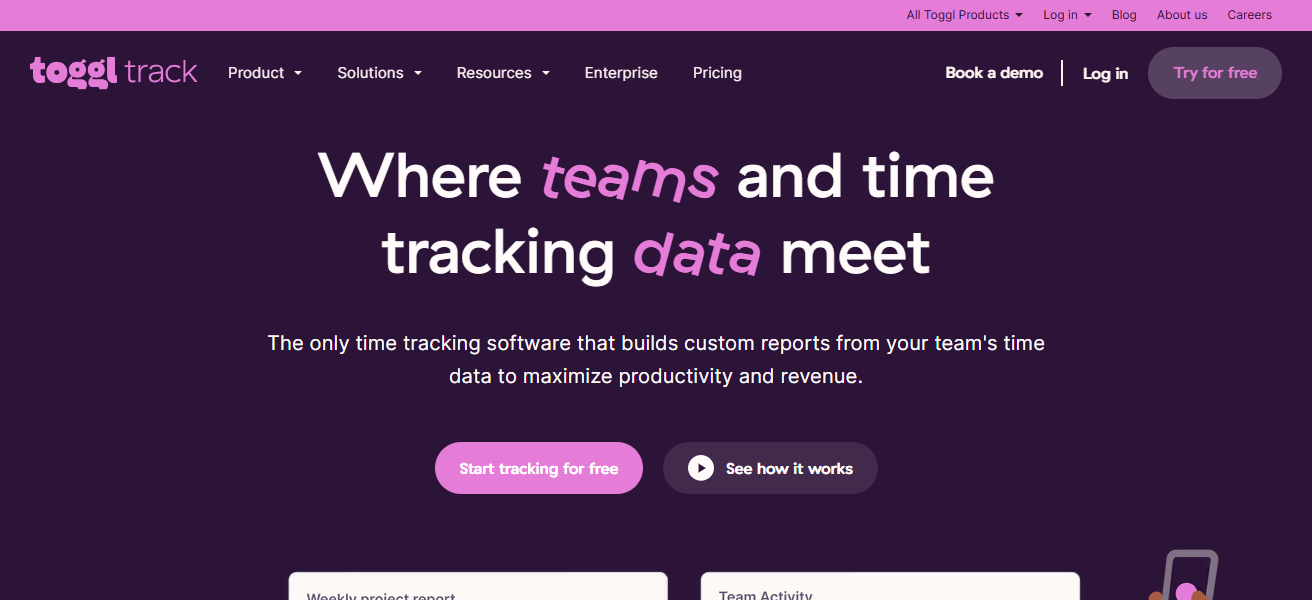
In case of manual time tracking, Toggl Track supports it along with reminders to adapt to any workflow. In case of project management integrations (Trello, Asana), time spent is linked with actual work.
Toggl Track helps freelancers, remote employees, and teams improve time awareness, accountability, and work-life balance.
Toggl Track Features
- Time Tracking– An accurate record of time is kept in the Disk by a start/stop timer.
- Time Entry – with reminders, time can be added manually.
- Project & Task Tags – Sort the recorded time by project, client, or task.
- Reports & Insights – Analyze your time allocation and productivity with visual reports.
| Pros | Cons |
|---|---|
| Simple start/stop timer for time tracking | Free version has limited reporting |
| Helps improve personal productivity | Relies on regular tracking discipline |
| Manual entries supported | Can feel basic without integrations |
| Integrates with project tools | Less project planning capability |
| Detailed time reports for analysis | Reports and dashboards stronger in paid plans |
How To Choose Best Apps for Work From Home
- Figure out your specific needs, including communication, task management, file sharing, and time tracking.
- Look for apps with simple designs, requiring little to no training for employees.
- Make certain the app integrates with tools your team already uses on a daily basis.
- Focus on features like chat, comments, collaborative documents, and real-time updates.
- Look for data encryption, user access controls, and privacy policies to check security features.
- Choose apps that operate without excessive crashes or heavy usage of your system resources.
- Analyze pricing tiers so the features that accompany the cost are appropriate for your team.
- Consider apps that work across devices so that workflows are not interrupted on any devices.
- Look for applications that offer workflows so that new habits are not required.
- Before finalizing decisions, collect team opinions and try apps with free trial periods.
Conclsuion
In conclusion Maintaining productivity, communication, and organization in remote environments is highly dependent on the apps you choose when working from home.
Productivity is highly dependent on the apps you choose when working from home. The right combination of tools helps teams collaborate effectively, manage tasks, share files, and track time.
Choosing apps that match your workflow and needs is vital to making remote work structured, flexible, and successful.
FAQ
They are tools that help with communication, collaboration, task management, and productivity.
Video conferencing, messaging, project management, file storage, and time-tracking apps are essential.
Yes, they help freelancers manage clients, tasks, time, and communication efficiently.
Most work-from-home apps support desktop, mobile, and web platforms.