By using this site, you agree to the Privacy Policy and Terms of Use.
Accept
CoinworldstoryCoinworldstoryCoinworldstory
  • HOME
  • CRYPTO
    • AI
    • BOTS
    • ICO
    • AIRDROP
      • Featured Airdrops
    • Price Prediction
    • EXCHANGE
      • Best Centralized Exchange List 2026
      • Best Decentralized Exchange List 2025
    • ALTCOIN
    • Alt Coin Signal
    • Crypto Analysis
    • Bitcoin Loan
    • Bitcoin Mining
    • WALLETPRO
  • PR
    PR
    If You Looking For Submit Cryptocurrency Press Releases Than Coinworldstory Is Best Choice For Crypto Press Release Submission
    Show More
    Top News
    ALCEDO Offers Real Cryptocurrency Adoption in its Purest Form
    ALCEDO Offers Real Cryptocurrency Adoption in its Purest Form
    2 years ago
    Crypto Commonwealth: A Blockchain project en route to a world-leading publisher and asset manager
    Crypto Commonwealth: A Blockchain project en route to a world-leading publisher and asset manager
    2 years ago
    CoinZoom Launches OTC Desk to Fill Gap for Institutional Customers
    2 years ago
    Latest News
    MapleStory Universe Opens MSU Space and Launches Global Game Jam Competition as Part of MSU 2.0 Expansion
    9 hours ago
    ChangeNOW Wins Best Digital Assets Fintech at the BeInCrypto Institutional 100 Awards 2026
    4 days ago
    Premu Opens User-Created, Leveraged Prediction Markets Ahead of the 2026 World Cup
    4 days ago
    Whale.io Launches Whale Printer: $WHALE Token Staking
    5 days ago
  • NEWS
    • Mining
    • Altcoins
    • Ban
    • BANKING/FINANCE NEWS
    • Bitcoin
    • Blockchain
    • CRYPTO CRIME
    • Ethereum
    • Exchange News
    • Government News
    NEWSShow More
    10 Hidden Liquidity Features Modern Brokers Secretly Use
    10 Hidden Liquidity Features Modern Brokers Secretly Use
    4 weeks ago
    10 Apps That Show What You Should Have Done Instead
    10 Apps That Show What You Should Have Done Instead
    2 months ago
    10 Best Crypto Conferences to Attend in 2026
    10 Best Crypto Conferences to Attend in 2026
    3 months ago
    Emerging Markets Favor Stablecoins Over Bitcoin
    Emerging Markets Favor Stablecoins Over Bitcoin
    4 months ago
    10 Solana DEXs With Lowest Slippage for Memecoin Trading
    10 Solana DEXs With Lowest Slippage for Memecoin Trading
    4 months ago
  • MORE
    • Guide
    • Only Best
    • Off Topic
    • Best Affiliate Marketing
    • Best Affiliate Programs
    • BOTS
    • Trusted Currency Exchanger Platform
    • Blockchain Games
    • Metaverse Review : Best Metaverse Program Review
    • Online Survey
    • Payment Platform
  • VPN
  • Contact Us
Reading: How To Fix Overheating Laptops-Easy Solutions & Tips
Share
Notification Show More
Font ResizerAa
CoinworldstoryCoinworldstory
Font ResizerAa
  • ADVERTISEMENT
  • SUBMIT PR
  • CONTACT
  • GUEST POST
  • ABOUT US
  • DMCA
  • SITEMAP
  • DISCLAIMER
  • PRIVACY POLICY
  • llms.txt
  • Newsletter
Search
  • HOME
  • CRYPTO
    • AI
    • BOTS
    • ICO
    • AIRDROP
    • Price Prediction
    • EXCHANGE
    • ALTCOIN
    • Alt Coin Signal
    • Crypto Analysis
    • Bitcoin Loan
    • Bitcoin Mining
    • WALLETPRO
  • PR
  • NEWS
    • Mining
    • Altcoins
    • Ban
    • BANKING/FINANCE NEWS
    • Bitcoin
    • Blockchain
    • CRYPTO CRIME
    • Ethereum
    • Exchange News
    • Government News
  • MORE
    • Guide
    • Only Best
    • Off Topic
    • Best Affiliate Marketing
    • Best Affiliate Programs
    • BOTS
    • Trusted Currency Exchanger Platform
    • Blockchain Games
    • Metaverse Review : Best Metaverse Program Review
    • Online Survey
    • Payment Platform
  • VPN
  • Contact Us
Have an existing account? Sign In
Follow US
© 2022 Foxiz News Network. Ruby Design Company. All Rights Reserved.

Home » How To Fix Overheating Laptops-Easy Solutions & Tips

Off Topic

How To Fix Overheating Laptops-Easy Solutions & Tips

Sam Usa
Last updated: 24/09/2025 12:27 PM
By
Sam Usa
BySam Usa
Follow:
12 months ago
Share
10 Min Read
Disclosure: We are not a registered broker-dealer or an investment advisor. The services and information we offer are for sophisticated investors, and do not constitute personal investment advice, which of necessity must be tailored to your particular means and needs. !
How To Fix Overheating Laptops-Easy Solutions & Tips
SHARE

In this post, I want to share some insights into preventing laptops from overheating, a noteworthy concern quite common among users which hinders performance and reduces durability. A laptop overheating can be the result of dust build-up, obstructed vents, or heavy usage.

Contents
  • Introduction
  • How To Fix Overheating Laptops
    • 1. Monitor CPU Activity
    • 2. Change Power Options
    • 3. Clearing Air Vents
    • 4. Checking BIOS and Driver Updates
    • 5. Use a Cooling Pad
    • 6. Monitor Temperatures
  • Why laptop Overheating is a Common Issue
  • Signs Your Laptop is Overheating
    • Continuously Running Fans
    • Hot Base or Keyboard Area
    • Performance Issues
    • 4. Shuts Down Unexpectedly
    • Visual Notifications For High Temperatures
  • Common Causes of Laptop Overheating
    • Blocked or Dirty Air Vents
    • Accumulated Dust in Fans/Heatsinks
    • Inadequate Airflow or Ventilation
    • High CPU/GPU Usage Due to Heavy Apps or Games
    • Old or Deteriorated Thermal Paste
    • Using Laptop on Soft Surfaces (Beds, Cushions)
  • Quick Fixes to Cool Down Your Laptop
    • Shut Down and Let the Laptop Rest
    • Close Unused Applications and Background Processes
    • Move to a Cooler, Well-Ventilated Location
    • Use an External Cooling Pad or Stand
  • When To Seek Professional Help
    • Internal Cleaning Seems Risky
    • Laptop Still Overheating After All Fixes
    • Performance Continues to Degrade
    • Possible Hardware Damage or Battery Swelling
  • Conclusion
  • FAQ
    • Why is my laptop overheating?
    • Is laptop overheating dangerous?
    • What are the signs of an overheating laptop?

How to fix an laptop’s overheating issues? I’ll guide you through some effective solutions, tips that aid prevention, and when it’s best to consult experts—ensuring that your laptop maintains its functionality at lower temperatures.

Introduction

A laptop that is overheating is a common issue , leading to performance issues, unexpected shutdowns, or even long-term damage to the hardware. These days thin laptops have high processing power and hence proper cooling systems to tackle overheating issues becomes crucial.

Overheating can happen due to improper ventilation or the laptop being used constantly but the good news is that it can often be fixed with simple solutions.

- Advertisement -

In this guide we will discuss how to properly diagnose signs of overheating, identify the underlying cause, and crucially how to fix these issues. The user can extend the life of his/her laptop by performing periodic maintenance.

How To Fix Overheating Laptops

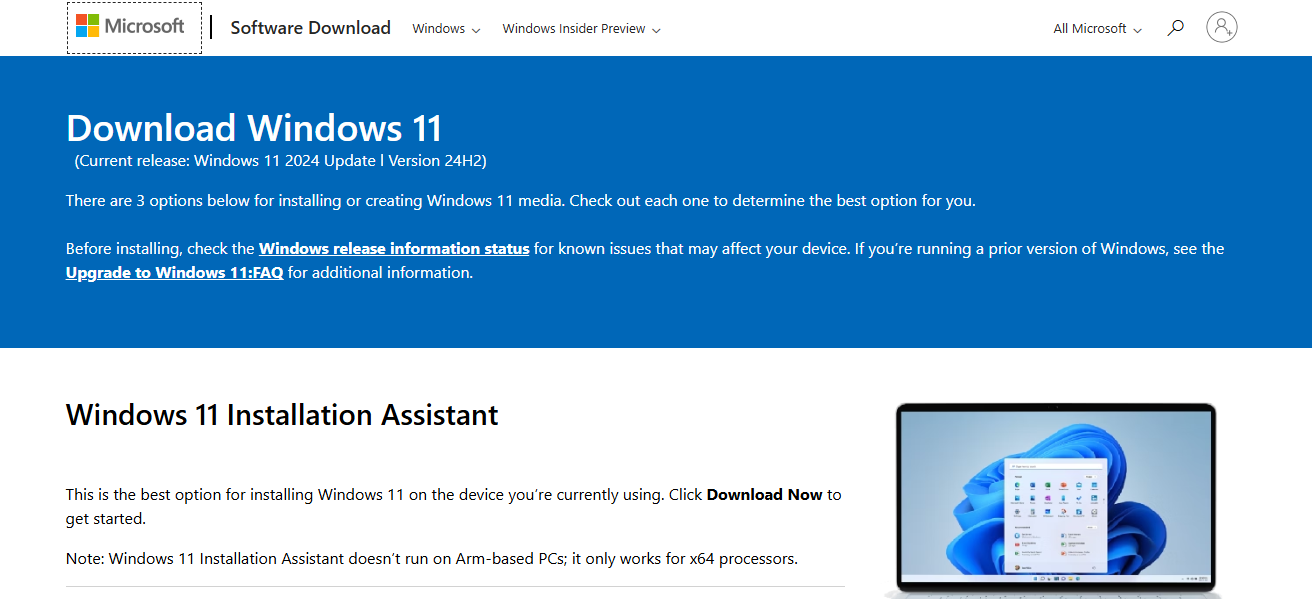
Practical Solutions to Laptop Overheating Using Windows 11 Here is a step-by-step approach if your laptop is overheating while using Windows 11:
How To Fix Overheating Laptops

1. Monitor CPU Activity

  • Open Task Manager by pressing Ctrl + Shift + Esc
  • Under the Processes tab, find the applications consuming excessive CPU resources
  • For non-essential programs, opt for right-clicking and choosing End Task

2. Change Power Options

  • Access Settings > System > Power & battery
  • Choose either Balanced or Best power efficiency under Power mode
  • It helps ease processor workload resulting in lesser heat waste

3. Clearing Air Vents

  • Turn off your laptop and disconnect it from any power source
  • With compressed amounts of air, remove visible dust from peripheral side and bottom vents
  • Refrain from using a vacuum cleaner as they may create damaging static electric charges

4. Checking BIOS and Driver Updates

  • Check for your updates at Setting > Windows update menu
  • Press the button saying Check for updates
  • Check the website from the laptop’s brand to download any updates of BIOS or any thermal drivers that are yet to be installed.

5. Use a Cooling Pad

  • Sit your laptop on a cooler pad or lifts with fans for better airflow.

6. Monitor Temperatures

  • These can be obtained using free applications such as HWMonitor or Core Temp.
  • It is also recommended to track measurements of the CPU whilst in operation, ensuring it stays below 85 degrees celsius.

While using Windows 11, following these steps ensure overheating reduction and increase overall vertical span on the laptops life Furthermore enduring regular checkups paired with effective energy use significantly slim down chances of overheating perth

Why laptop Overheating is a Common Issue

Compact Design: Limited spatial design brings down air circulation and unnecessary fan noise.

Dust Buildup: Dust blocks the vent and fan from drawing in cool, fresh air; effectively trapping warm air inside.

- Advertisement -

Heavy Resource Demand: Intensive CPU or GPU usage while gaming, editing videos, or multitasking.

Poor Airflow: Using the device on soft cushions or beds suffocates the air intake.

Aging Hardware: Laptop thermal paste becomes degraded while fans die with age ultimately losing their ability to spin.

- Advertisement -

Ignoring Issues: Heating problems become escalated due to infrequent updates and device cleaning.

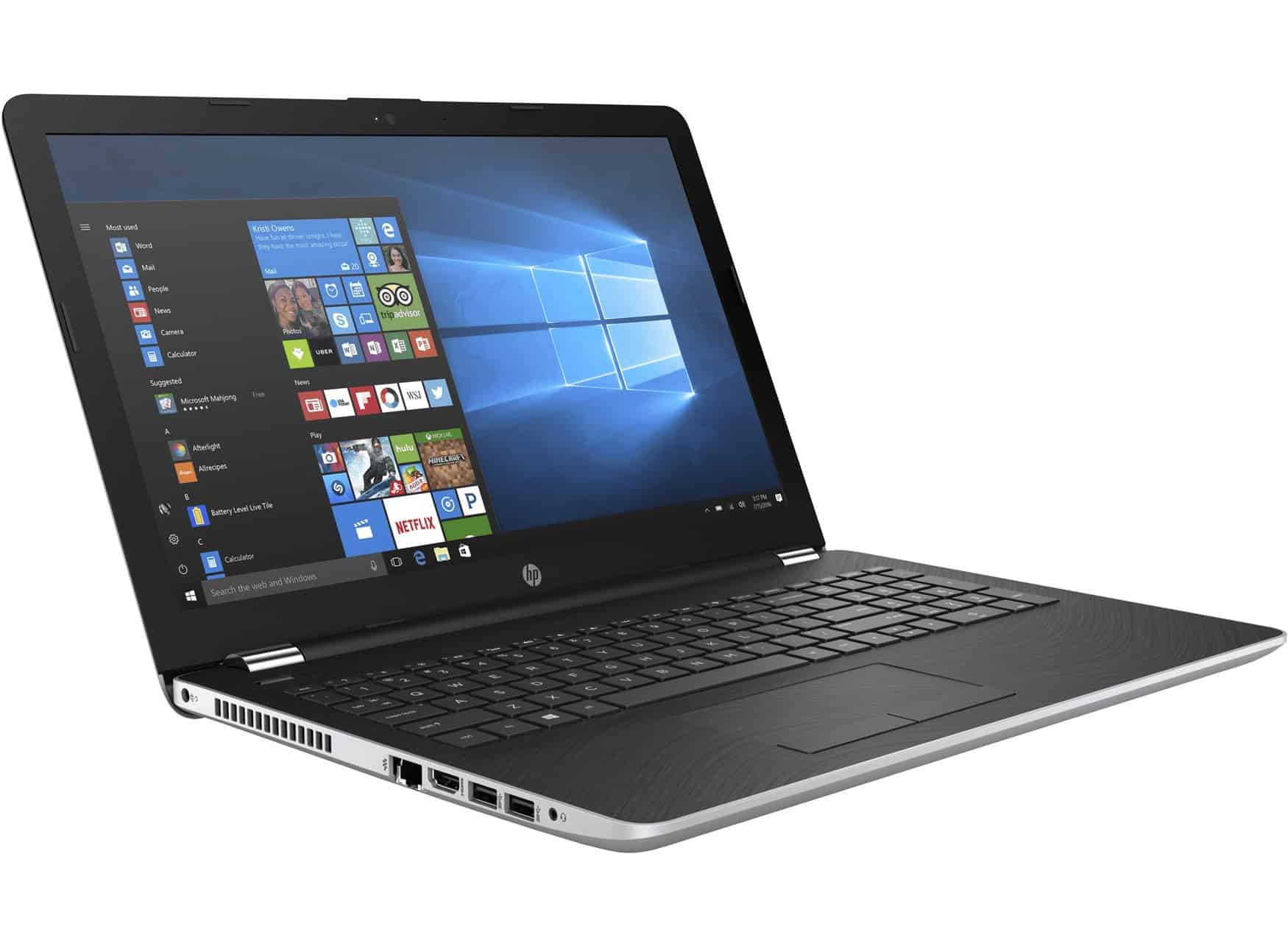
Signs Your Laptop is Overheating
Signs Your Laptop is Overheating

Continuously Running Fans

Consistent usage of light tasks and hearing your laptop’s fans working overtime suggests performance as well as heightened internal temperatures requiring cooling assistance.

Hot Base or Keyboard Area

Blocked vents alongside overly exhausted internal components prevent proper heat dissipation, and can make both the keyboard and bottom area feel excessively hot to touch.

Performance Issues

Overheating may throttle intensively used apps or processes, resulting in unseasonable freezes while also impairing responsiveness leading devices into a sleep like state till the excess temperature is alleviated.

4. Shuts Down Unexpectedly

Under heavy loads, laptops tend to shut down autonomously which indicates that thermal shielding functionalities are kicking in to alleviate heat associated damage to core components.

Visual Notifications For High Temperatures

Within modern day laptops, features such as alert icons can serve dual purposes by notifying users of elevated internal temperatures leading them to cool down said hardware or risking failure, rendering it uselesss.

Common Causes of Laptop Overheating

Blocked or Dirty Air Vents

Vent cleaning is mandatory because sputtered vents hinder air circulation, resulting in hot air getting trapped within the laptop.

Accumulated Dust in Fans/Heatsinks

Accumulated dust makes it burdensome for laptops to function effectively, thereby causing errors during mobile usage while maintaining high temperatures.

Inadequate Airflow or Ventilation

Laptops that are kept in poorly ventilated locations tend to overheat as a result of their surroundings being cramped and stuffy.

High CPU/GPU Usage Due to Heavy Apps or Games

Average users’ increasing reliance on gaming apps is straining graphic cards and processors due to extensive heat generation whilst operating.

Old or Deteriorated Thermal Paste

The oldest an item becomes, the more expenses they accumulate with its warranty .This results in expensive loses for companies looking to stay sustainable.

Using Laptop on Soft Surfaces (Beds, Cushions)

Cushioning your devices using pillows and other fabrics spells a disaster due to poor vent treatment and loss of internal airflow greedy hot .

Quick Fixes to Cool Down Your Laptop

Shut Down and Let the Laptop Rest

Components cool down better when stress is released by turning off the device and letting it relax for some time.

Close Unused Applications and Background Processes

Reducing unused applications decreases internal workload and temperature because less processing power is needed for fans to function smoothly.

Move to a Cooler, Well-Ventilated Location

A cooler open place lets laptops work more efficiently since airflow around the laptop is improved, which helps heat dissipation.

Use an External Cooling Pad or Stand

Cooling stands assist in maintaining proper laptop temperatures during heavy computational tasks by improving air circulation under the laptop.

When To Seek Professional Help

Internal Cleaning Seems Risky

Thermal paste application and fan cleaning is best left to professionals if you don’t feel comfortable with taking the laptop apart. Opening it up can lead to damage on sensitive parts.

Laptop Still Overheating After All Fixes

Overheating issues require more advanced troubleshooting when basic methods like cleaning, using cooling pads, https://foryourpc.com/fan/adjusting-settings/, and even setting adjustments have failed.

Performance Continues to Degrade

Professional evaluation is warranted when common troubleshooting techniques; fixing internal wear, or failing components result in ongoing lagging, freezing, or thermal throttling.

Possible Hardware Damage or Battery Swelling

Immediate repairs are necessary after noticeable distortions like bulging battery, system warping, screen swelling arise due to extreme hazards and safety risks_constants security threats.

Conclusion

Conclusively, Overheating is a common laptop issue that almost all of us face at one point in time. Practicing regular maintenance, good ventilation practices, and proper cleaning can avoid heat-related issues on your laptop.

Also make use of cooling pads where necessary and check on the performance regularly as well as obtaining assistance if needed.

Tackling the overheating issue early on not only provides smoother performance but also increases longevity of hardware components and smooth performance throughout the years

Enhancements through proper proactive measures during usage without restricting mobility can ensure effective and efficient performance with less temperatures.

FAQ

Why is my laptop overheating?

Overheating is usually caused by dust-clogged vents, poor airflow, high-performance tasks, or aging thermal paste that no longer transfers heat efficiently.

Is laptop overheating dangerous?

Yes. Prolonged overheating can damage the CPU, GPU, battery, and other components, leading to performance issues or permanent hardware failure.

What are the signs of an overheating laptop?

Common signs include loud fans, hot surfaces, slow performance, sudden shutdowns, and warning messages about high temperature.

Top 10 Security-First AI Agents for Banking & Finance 2026
10 Best AI SEO Tools for ChatGPT & Google Visibility Growth
10 Best ChatGPT SEO Strategies for Traffic Growth 2026
Top 10 AEO Strategies To Rank Higher in AI Search 2026
10 GEO Optimization Techniques For AI-Powered Search Engines 2026
Share This Article
Facebook Pinterest Whatsapp Whatsapp LinkedIn Tumblr Reddit VKontakte Telegram Threads Bluesky Email Copy Link Print
Previous Article How To Travel During Peak Seasons – Smart Tips for a Smooth Trip How To Travel During Peak Seasons – Smart Tips for a Smooth Trip
Next Article 10 Top Ways To Convert Facebook Friends To Followers 10 Top Ways To Convert Facebook Friends To Followers
TOP CRYPTO EXCHANGES

Best Crypto Exchanges

Kraken
Secure Trading
Visit
Bybit
Low Fees
Visit
HTX
Global Exchange
Visit
CoinSwitch
Easy INR Access
Visit
Poloniex
Altcoin Markets
Visit
TOP CRYPTO CASINOS
Best Crypto Casinos
Roobet
Roobet
Popular Casino
Visit
Stake
Stake
Top Sportsbook
Visit
BC.Game
BC.Game
Crypto Friendly
Visit
Rollbit
Rollbit
Casino + Trading
Visit
Duelbits
Duelbits
Instant Withdrawals
Visit

Find Us on Socials

TOP CRYPTO TOOLS
Best Crypto Tools
TradingView
Charts & Analysis
Visit
CoinGlass
Liquidation Data
Visit
CoinMarketCap
Market Tracking
Visit
DexScreener
DEX Analytics
Visit
Arkham
Wallet Tracking
Visit

Coinworldstory Ads

10 Best Local Fiat Cash-to-Crypto Gateways Without Banks 2026
Best Centralized Exchange List 2026
10 Best Open-Source Python Crypto Trading Bots Offline
BOTS
AI vs Technical Analysis In Crypto Trading Guide 2026
Artificial Intelligence
10 Best Japanese Agencies for Local Conversational LLM Search
Artificial Intelligence

Latest Published

10 Best AEO Tools For Voice and AI Search Optimization

10 Best AEO Tools For Voice and AI Search Optimization

1 week ago
10 Top Frameworks for Google AI Overview Product Rankings

10 Top Frameworks for Google AI Overview Product Rankings

2 weeks ago
10 Best AI Voice Search Tools for Smart Shopping Devices 2026

10 Best AI Voice Search Tools for Smart Shopping Devices 2026

2 weeks ago
10 Best Home Gym Equipment Essentials Under $500 Guide 2026

10 Best Home Gym Equipment Essentials Under $500 Guide 2026

2 weeks ago
◈
CoinWorldStory
Crypto News, Reviews & Blockchain Insights
✓ Editorial Standards ✓ Research Driven ✓ Updated Daily
📧 Email Us At: support@coinworldstory.com 💬 Join Telegram
nexo banner
  • ADVERTISEMENT
  • SUBMIT PR
  • CONTACT
  • GUEST POST
  • ABOUT US
  • DMCA
  • SITEMAP
  • DISCLAIMER
  • PRIVACY POLICY
  • llms.txt
  • Newsletter
10 Best SaaS Tools for Client Onboarding Automation Guide
Trending
Fake Airdrop Scam Explained: Protect Your Crypto Assets
Trending
10 Best Games To Play With Girlfriend Online – Top Picks
Trending
CoinworldstoryCoinworldstory
Follow US
© Coinworldstory News Network. Cws Design Company. All Rights Reserved.
  • ADVERTISEMENT
  • SUBMIT PR
  • CONTACT
  • GUEST POST
  • ABOUT US
  • DMCA
  • SITEMAP
  • DISCLAIMER
  • PRIVACY POLICY
  • llms.txt
  • Newsletter
coinworldstory logo coinworldstory logo
Welcome Back!

Sign in to your account

Username or Email Address
Password

Lost your password?