By using this site, you agree to the Privacy Policy and Terms of Use.
Accept
CoinworldstoryCoinworldstoryCoinworldstory
  • HOME
  • CRYPTO
    • AI
    • BOTS
    • ICO
    • AIRDROP
      • Featured Airdrops
    • Price Prediction
    • EXCHANGE
      • Best Centralized Exchange List 2026
      • Best Decentralized Exchange List 2025
    • ALTCOIN
    • Alt Coin Signal
    • Crypto Analysis
    • Bitcoin Loan
    • Bitcoin Mining
    • WALLETPRO
  • PR
    PR
    If You Looking For Submit Cryptocurrency Press Releases Than Coinworldstory Is Best Choice For Crypto Press Release Submission
    Show More
    Top News
    Why We Should Keep An Eye On Gaming For Bitcoin Adoption
    Why We Should Keep An Eye On Gaming For Bitcoin Adoption
    4 months ago
    How Blockchain, Telegram / TON / TVM technology and the OZOTOP project will revolutionize today's society
    How Blockchain, Telegram / TON / TVM technology and the OZOTOP project will revolutionize today’s society
    5 years ago
    Blockchain Platform Ethernity Chain Announces “The Messiverse” Has Arrived
    2 years ago
    Latest News
    $100/Month in Bitcoin Since 2015 Would Have Turned $13,700 Into $632,000, Coinbird Analysis Shows
    7 hours ago
    Lock.com Enters Early Access With Isolated Signing and Post-Quantum Architecture
    1 day ago
    E-Estate Announces 1 Year Live: Washington DC Summit as Real Estate Tokenization Enters Its Next Phase
    4 days ago
    MapleStory Universe Marks One Year of Live Ops, Surpasses 150M On-chain Transactions, Entering MSU 2.0 Phase
    5 days ago
  • NEWS
    • Mining
    • Altcoins
    • Ban
    • BANKING/FINANCE NEWS
    • Bitcoin
    • Blockchain
    • CRYPTO CRIME
    • Ethereum
    • Exchange News
    • Government News
    NEWSShow More
    10 Hidden Liquidity Features Modern Brokers Secretly Use
    10 Hidden Liquidity Features Modern Brokers Secretly Use
    6 days ago
    10 Apps That Show What You Should Have Done Instead
    10 Apps That Show What You Should Have Done Instead
    2 months ago
    10 Best Crypto Conferences to Attend in 2026
    10 Best Crypto Conferences to Attend in 2026
    2 months ago
    Emerging Markets Favor Stablecoins Over Bitcoin
    Emerging Markets Favor Stablecoins Over Bitcoin
    3 months ago
    10 Solana DEXs With Lowest Slippage for Memecoin Trading
    10 Solana DEXs With Lowest Slippage for Memecoin Trading
    3 months ago
  • MORE
    • Guide
    • Only Best
    • Off Topic
    • Best Affiliate Marketing
    • Best Affiliate Programs
    • BOTS
    • Trusted Currency Exchanger Platform
    • Blockchain Games
    • Metaverse Review : Best Metaverse Program Review
    • Online Survey
    • Payment Platform
  • VPN
  • Contact Us
Reading: How To Use Microsoft Planner – Step-by-Step Guide for Beginners
Share
Notification Show More
Font ResizerAa
CoinworldstoryCoinworldstory
Font ResizerAa
  • ADVERTISEMENT
  • SUBMIT PR
  • CONTACT
  • GUEST POST
  • ABOUT US
  • DMCA
  • SITEMAP
  • DISCLAIMER
  • PRIVACY POLICY
Search
  • HOME
  • CRYPTO
    • AI
    • BOTS
    • ICO
    • AIRDROP
    • Price Prediction
    • EXCHANGE
    • ALTCOIN
    • Alt Coin Signal
    • Crypto Analysis
    • Bitcoin Loan
    • Bitcoin Mining
    • WALLETPRO
  • PR
  • NEWS
    • Mining
    • Altcoins
    • Ban
    • BANKING/FINANCE NEWS
    • Bitcoin
    • Blockchain
    • CRYPTO CRIME
    • Ethereum
    • Exchange News
    • Government News
  • MORE
    • Guide
    • Only Best
    • Off Topic
    • Best Affiliate Marketing
    • Best Affiliate Programs
    • BOTS
    • Trusted Currency Exchanger Platform
    • Blockchain Games
    • Metaverse Review : Best Metaverse Program Review
    • Online Survey
    • Payment Platform
  • VPN
  • Contact Us
Have an existing account? Sign In
Follow US
© 2022 Foxiz News Network. Ruby Design Company. All Rights Reserved.
Home » Blog » How To Use Microsoft Planner – Step-by-Step Guide for Beginners
Off Topic

How To Use Microsoft Planner – Step-by-Step Guide for Beginners

Alma Causey
Last updated: 22/09/2025 7:44 PM
Alma Causey
11 months ago
Share
Disclosure: We are not a registered broker-dealer or an investment advisor. The services and information we offer are for sophisticated investors, and do not constitute personal investment advice, which of necessity must be tailored to your particular means and needs. !
How To Use Microsoft Planner - Step-by-Step Guide for Beginners
SHARE

In this article, I will discuss Microsoft Planner’s use for task management and team project organization. Microsoft Planner is an organizational app that utilizes boards, buckets, and charts to enhance both individual and team productivity.

Contents
  • What Is Microsoft Planner?
  • How To Use Microsoft Planner
  • Tracking Progress and Reports
    • Using the Charts View for Status Overview
    • Filtering Tasks By User, Label, or Status
    • Best Practices For Reporting And Review
  • Tips and Best Practices
    • Naming Conventions for Plans and Buckets
    • Keeping Your Board Uncluttered
    • Setting Realistic Deadlines
    • Encouraging Team Check-ins
  • Is Microsoft Planner free?
  • Conclusion
  • FAQ
    • Can I use it alone?
    • How do I assign tasks?
    • Can I integrate it with Teams?

Microsoft Planner is a solo or team collaborative tool found within the Microsoft Teams application. The use of Microsoft Planner helps enhance productivity during your work.

What Is Microsoft Planner?

Microsoft Planner allows its users to manage their tasks. As part of Microsoft 365 suite, planner helps visually organize, allocate and track work using a board and a card system.

Plans’ are created for each project. Within these plans, tasks can be grouped into ‘buckets’ which have features like due dates, checklists, team collaboration, and file attachments.

- Advertisement -

Boards and Charts views are available for progress monitoring. For optimal team productivity and project workflow management, Planner integrates effortlessly with Microsoft Teams

Outlook, and SharePoint. For a task-oriented workflow, Microsoft Planner is most effective for medium to small projects.

How To Use Microsoft Planner

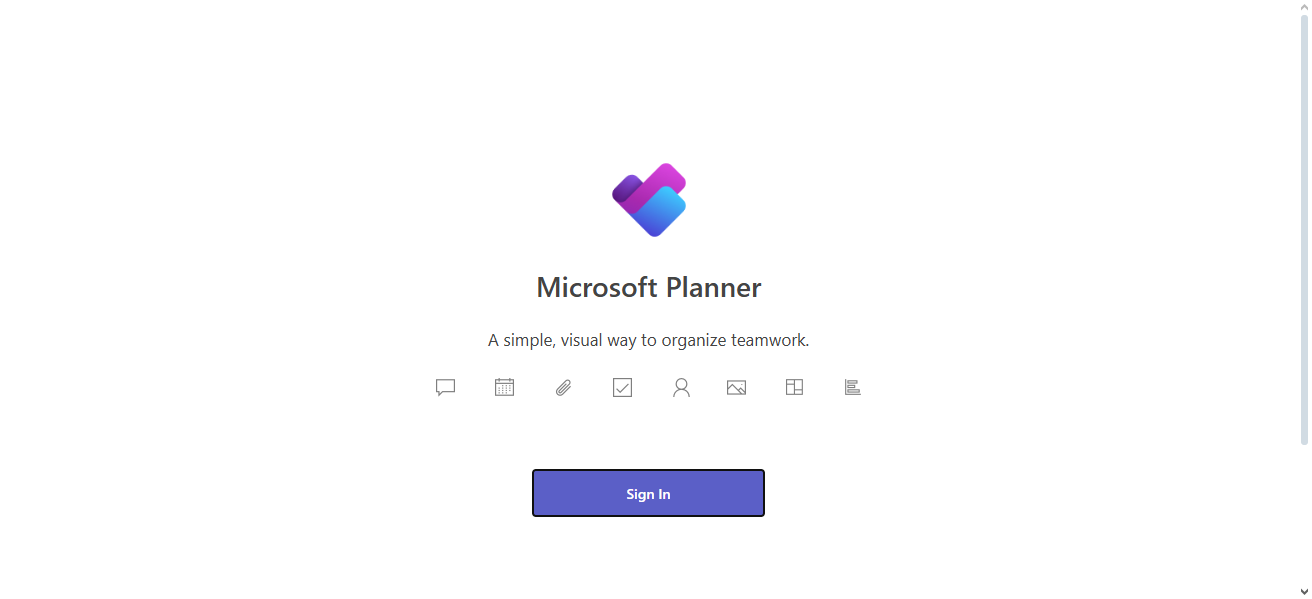
Sign In to Planner
How To Use Microsoft Planner
  • Go to https://tasks.office.com
  • Or access it via Microsoft Teams or the Microsoft 365 apps dashboard

Create a New Plan

  • Click “+ New Plan”
  • Name your plan
  • Choose between Public (within your org) or Private
  • Click “Create Plan”

Add Buckets

- Advertisement -
  • Use buckets to organize tasks (e.g., “To Do,” “In Progress,” “Completed”)
  • Click “Add new bucket” to create more sections

Add Tasks to Buckets

  • Click “+ Add task” under a bucket
  • Enter task name, due date, and assignee
  • Click “Add Task”

Edit Task Details

  • Add checklists, file attachments, comments, and labels
  • Set priority (urgent, important, low) and status (not started, in progress, completed)

Assign Tasks to Team Members

- Advertisement -
  • Use the “Assign” option in each task
  • Assign tasks to one or multiple users

Use Labels to Categorize Tasks

  • Apply color-coded labels to organize by theme or urgency
  • Rename labels as needed

Track Progress with Views

  • Board view – shows tasks by bucket
  • Charts view – visual status tracking (e.g., pie charts for completed tasks)

Collaborate with Team Members

  • Add comments to tasks for updates
  • Team members get email or Teams notifications for changes

Tracking Progress and Reports

Using the Charts View for Status Overview

Check visual charts to monitor task completion with metrics on completed, in-progress, and not started for quick assessment.

Filtering Tasks By User, Label, or Status

Focus on relevant work immediately by filtering tasks based on assignee, labels, priority, status, and other specified criteria.

Best Practices For Reporting And Review

Share workload summaries to improve balanced tracking and active teamwork, while managing overdue tasks more effectively.

Tips and Best Practices

Naming Conventions for Plans and Buckets

To maintain order and navigability in boards, utilize consistent labels such as “Q3 Marketing Plan” or “Design Tasks – Website Redesign.”

Keeping Your Board Uncluttered

Minimize clutter by archiving or deleting completed tasks, reducing the number of buckets, and using labels.

Setting Realistic Deadlines

Ensure quality delivery by avoiding heavy workloads for a single member and setting deadlines spaced reasonably for the given work.

Encouraging Team Check-ins

Facilitate alignment and shared accountability in the team by removing blockers through regular brief scheduled meetings or async updates.

Is Microsoft Planner free?

Microsoft Planner comes with most business and education plans of Microsoft 365, therefore it is convenient for organizations already embedded in the Microsoft ecosystem.

It can be found under subscriptions of Microsoft 365 Business Basic, Business Standard, Business Premium, and Enterprise E1, E3, and E5 plans. For Educational institutions, it’s part of the Microsoft 365 A1, A3, and A5 plans.

This single sign-on feature eliminates the need for investing in other software for function-based task management. Users can utilize Planner with Teams, Outlook, and SharePoint thus improving collaboration and productivity across teams while streamlining project organization.

Conclusion

In summary, Microsoft Planner serves as a visually trackable tool that assists users in organization and task management while team projects are being supervised simultaneously.

Its ease of use alongside its advanced features such as buckets, labels, and charts allow for more efficient collaboration and productivity through the entire Microsoft 365 ecosystem.

It does not matter whether you are a solo user or part of a team, Planner optimizes your daily routine and boosts productivity during every step of the way.

FAQ

Can I use it alone?

Yes, for personal tasks or team collaboration.

How do I assign tasks?

Create a task and select a team member under “Assign.”

Can I integrate it with Teams?

Yes, add Planner as a tab in any Teams channel.
10 Travel Insurance Plans Compared: India vs Global Guide
7 Top Platforms To Book Luxury Villas at Best Discounts
9 Best Websites For Long-Term Rentals While Traveling
Why Businesses Are Switching From Salesforce To HubSpot
9 Top Websites for Last-Minute Travel Deals Online Guide
Share This Article
Facebook Email Print
ByAlma Causey
Follow:
Alma Causey is a Freelance writer by day and sports fan by night. She writes about tech education and health related issues. Live simply, give generously, watch football and a technology lover.
Previous Article 10 Safest Ways To Trade Crypto Otc | Secure Your Large Transactions 10 Safest Ways To Trade Crypto Otc | Secure Your Large Transactions
Next Article 9 Top Cross-Chain Yield farming Opportunities | Maximize DeFi Returns 9 Top Cross-Chain Yield farming Opportunities | Maximize DeFi Returns

Find Us on Socials

Coinworldstory Ads

10 Top VPNs Ready For Quantum Computing Threats 2026
VPN
10 Best Netflix VPNs That Still Work Globally In 2026
VPN
$100/Month in Bitcoin Since 2015 Would Have Turned $13,700 Into $632,000, Coinbird Analysis Shows
Press Releases
12 Best VPNs To Unlock Roblox & Bypass Blocks 2026
VPN

Latest Published

10 Best Offline Travel Apps for Easy Stress-Free Trips

10 Best Offline Travel Apps for Easy Stress-Free Trips

3 weeks ago
10 Best Online MBA Programs For Executive Leadership 2026

10 Best Online MBA Programs For Executive Leadership 2026

3 weeks ago
10 Best WhatsApp Marketing SaaS Tools In India (2026 Guide)

10 Best WhatsApp Marketing SaaS Tools In India (2026 Guide)

4 weeks ago
10 Best Truck Accident Attorneys: Choose Top Legal Help

10 Best Truck Accident Attorneys: Choose Top Legal Help

4 weeks ago
nexo banner
  • ADVERTISEMENT
  • SUBMIT PR
  • CONTACT
  • GUEST POST
  • ABOUT US
  • DMCA
  • SITEMAP
  • DISCLAIMER
  • PRIVACY POLICY
10 Best Games To Play With Girlfriend Online – Top Picks
Trending
10 Best Mobile Games Supporting 120 FPS for Smooth Gameplay
Trending
10 Best High Graphics Android Games for Phones with 4GB RAM
Trending
CoinworldstoryCoinworldstory
Follow US
© Coinworldstory News Network. Cws Design Company. All Rights Reserved.
  • ADVERTISEMENT
  • SUBMIT PR
  • CONTACT
  • GUEST POST
  • ABOUT US
  • DMCA
  • SITEMAP
  • DISCLAIMER
  • PRIVACY POLICY
coinworldstory logo coinworldstory logo
Welcome Back!

Sign in to your account

Username or Email Address
Password

Lost your password?