This article will cover some of the Best Apps for Note Taking & Organization that can help you increase productivity and optimize your workflow.
- Key Points & Best Apps For Note Taking & Organization
- 10 Best Apps For Note Taking & Organization
- 1. Evernote
- 2. Google Keep
- 3. Apple Notes
- 4. Obsidian
- 5. Roam Research
- 6. Simplenote
- 7. Bear
- 8. Zoho Notebook
- 9. Joplin
- 10. Turtl
- Key Highlights – Turtl
- How To Choose Best Apps for Note Taking & Organization
- Cocnsluion
- FAQ
From basic apps for fast note taking, to advanced research management tools and team collaboration platforms, these apps provide organization for your ideas using tags, sync, and even multimedia.
Key Points & Best Apps For Note Taking & Organization
| App | Key Point |
|---|---|
| Evernote | Powerful organization with notebooks, tags, and cross-device sync |
| Google Keep | Quick sticky-note style with seamless Google ecosystem integration |
| Apple Notes | Native iOS/macOS app with rich media support |
| Obsidian | Markdown-based knowledge graph for linking ideas |
| Roam Research | Networked thought system ideal for research and idea mapping |
| Simplenote | Lightweight, distraction-free note-taking with version history |
| Bear | Beautiful design with Markdown support for writers |
| Zoho Notebook | Multimedia cards with free cloud sync |
| Joplin | Open-source app with strong privacy and offline support |
| Turtl | Encrypted notes for secure organization |
10 Best Apps For Note Taking & Organization
1. Evernote
In terms of flexibility, few note-taking apps can match Evernote. The app’s organizational features, including the ability to create notes, sort them into separate notebooks, and tag for easy retrieval, are impressive.
Even the search function stands above the rest, with the ability to recognize and search for text contained in images. This is highly useful for users who need to do or organize a lot of research.
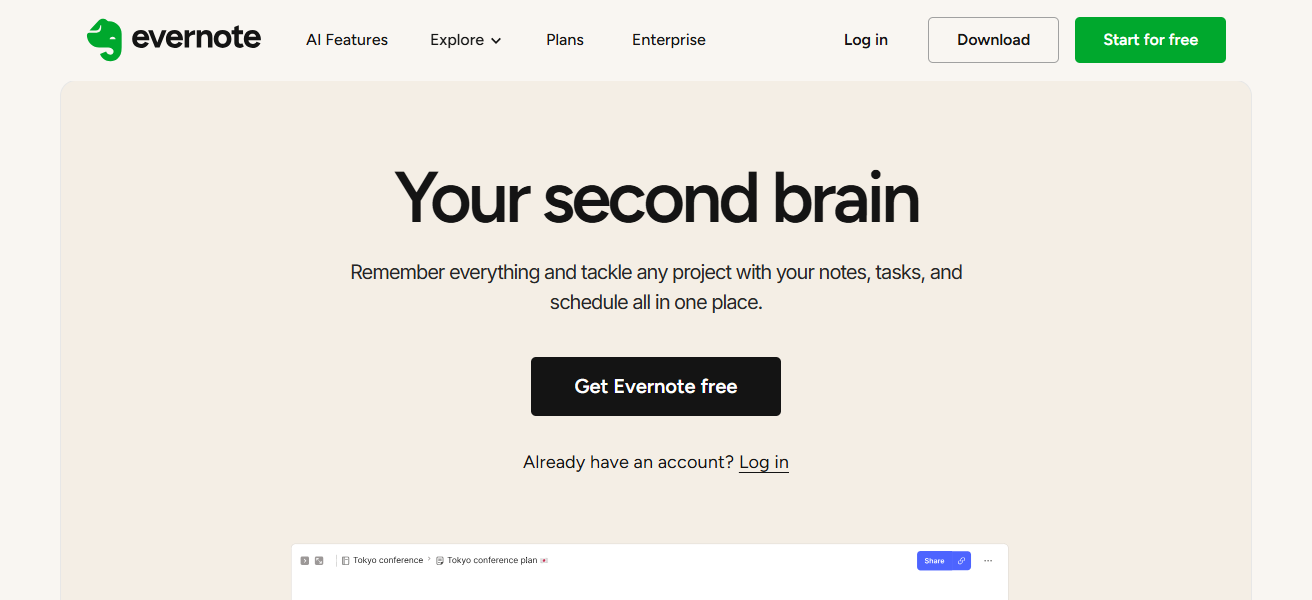
Users can attach images, files, and web clippings, and they can sync everything across their devices. Task management and collaboration also make the app useful for teams. Evernote remains simple, yet sophisticated.
Key Highlights – Evernote
- Categorize notes in a notebook or a stack and retrieve notes easily.
- Includes a powerful quick search for image and PDF text queries.
- Web clippings, task management, and other attachments are supported.
- Collaboration for teams and seamless syncing on different devices.
| Pros | Cons |
|---|---|
| Highly versatile with rich formatting, attachments, and web clipping. | Free version has limited features and storage. |
| Powerful search including text in images. | Can be overwhelming for beginners due to many features. |
| Organizes notes with notebooks, tags, and stacks. | Some advanced collaboration features require premium. |
| Syncs across multiple devices seamlessly. | Occasional lag with large notes or notebooks. |
| Supports task management and collaboration for teams. | Pricey premium plans compared to alternatives. |
2. Google Keep
Google Keep is one of the simplest note-taking apps available. It allows you to create quick notes using voice memos, and also create checklists and attach images. It even has a collaborator feature that is useful for jotting down notes with coworkers.
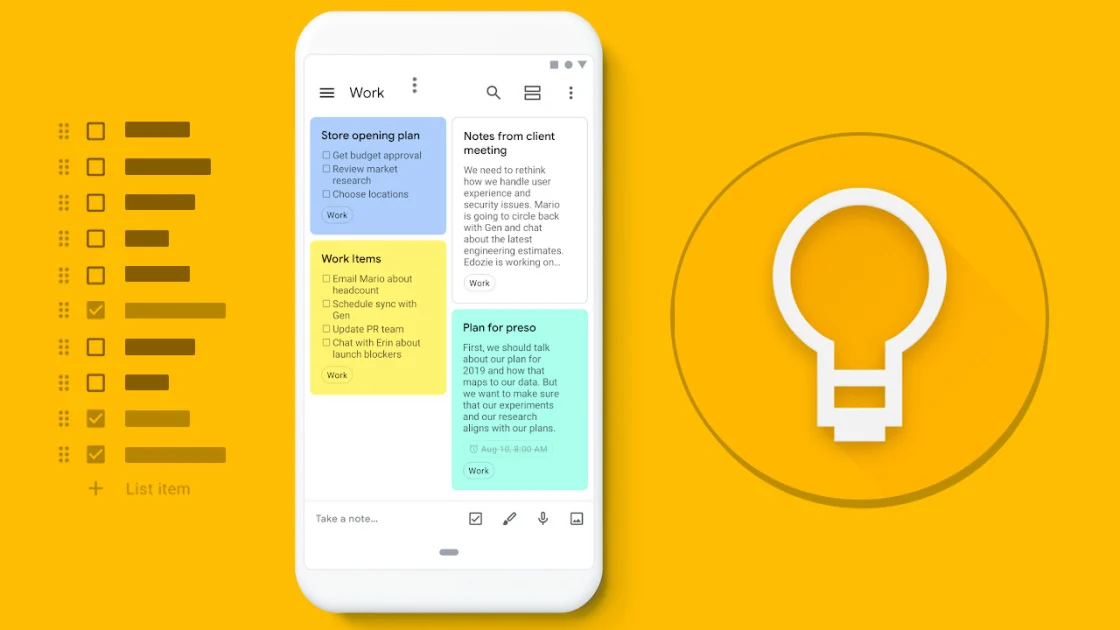
Keep integrates with Google Drive, so you never have to worry about where your notes go. It also integrates with Google’s other workspace apps, which is useful if you are a Drive/Docs/Calendar user.
You can sort your notes with stickers, and drag and drop them to change their order. You can even share your notes with other users.
Key Highlights – Google Keep
- With a sticky-note style interface, note-taking is quick and simple.
- Organization is made easy through note and label color-coding.
- Supports voice memos, image attachments, and checklists.
- Google Workspace integration and Google Drive auto-sync are available.
| Pros | Cons |
|---|---|
| Simple, fast, and easy to use. | Limited formatting options for text notes. |
| Color-coded notes for better organization. | Not ideal for large-scale note management. |
| Supports voice memos, checklists, and images. | Lacks advanced linking and hierarchy features. |
| Syncs automatically across devices via Google account. | Search functionality is basic compared to other apps. |
| Integrates with Google Workspace apps for productivity. | No offline editing support on some devices. |
3. Apple Notes
Apple Notes is an application for the iOS and macOS operating systems, allowing notes to be taken and organized. Notes can be formatted in a variety of ways, and additional files in the forms of PDFs and images can be attached.
Notes can be organized into sets of multiple folders and sub folders, as well as tagged for later searching. Notes can also be edited by multiple people in a split screen promoting active collaboration.
With iCloud integration, Apple Notes can be accessed consistently on all Apple devices. Notes can be handwritten, and users can set a password to users on Apple Notes. This makes the application popular among students and note takers
Key Highlights – Apple Notes
- For iOS and macOS, a native app with iCloud smooth syncing.
- Checklists, rich text, attachments, and handwriting support.
- Notes are organized into tags, subfolders, and folders.
- Protected notes with passwords and real-time collaboration.
| Pros | Cons |
|---|---|
| Seamless integration across iOS and macOS devices. | Limited compatibility with non-Apple devices. |
| Supports rich text, attachments, checklists, and sketches. | Some features like collaboration need Apple ecosystem. |
| Notes can be organized in folders, subfolders, and tags. | Lacks advanced knowledge management features. |
| Real-time collaboration with multiple users. | Not ideal for complex workflows. |
| Secure notes with password or Face ID/Touch ID protection. | Limited export options compared to other apps. |
4. Obsidian
Obsididian is a note-taking app that uses a special ‘knowledge graph’ design system. Notes are saved in Markdown files that live on your device, and the user can create links between files to form a web of concepts.
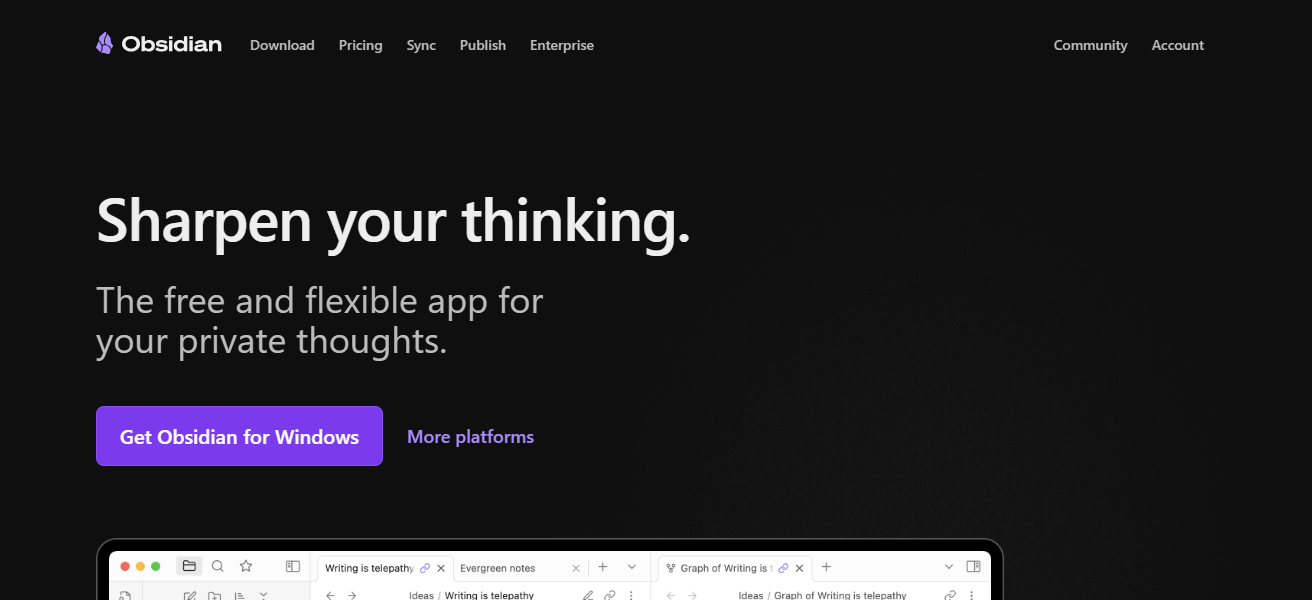
This app is optimal for managing long-term knowledge, research, and writing. While most note-taking apps lack customizable features to create a calendar and even journal
Obsididian achieves this through community plugins. For those concerned about their privacy, Obsididian stores your files locally, but also provides cloud options for access across devices.
Key Highlights – Obsidian
- For complete privacy, notes are stored locally and created with Markdown.
- Connect different notes with graph visualization and backlinking.
- With journaling, tasks, and other plugins, it’s customizable.
- For long-term knowledge management, and writing or research is ideal.
| Pros | Cons |
|---|---|
| Markdown-based notes with local storage for privacy. | Learning curve for beginners. |
| Powerful backlinking and knowledge graph visualization. | Limited mobile usability compared to desktop. |
| Highly customizable with community plugins. | Requires manual setup for some features. |
| Ideal for research, writing, and long-term knowledge management. | No built-in cloud sync by default. |
| Supports task management and daily journaling. | Can be overwhelming due to many plugin options. |
5. Roam Research
Since its inception, Roam Research has touted itself as being a tool for ‘networked thought’ and has won over many researchers and writers.
Unlike most note-taking applications, Roam emphasizes the connections between ideas via bi-directional linking and a graph structured database.
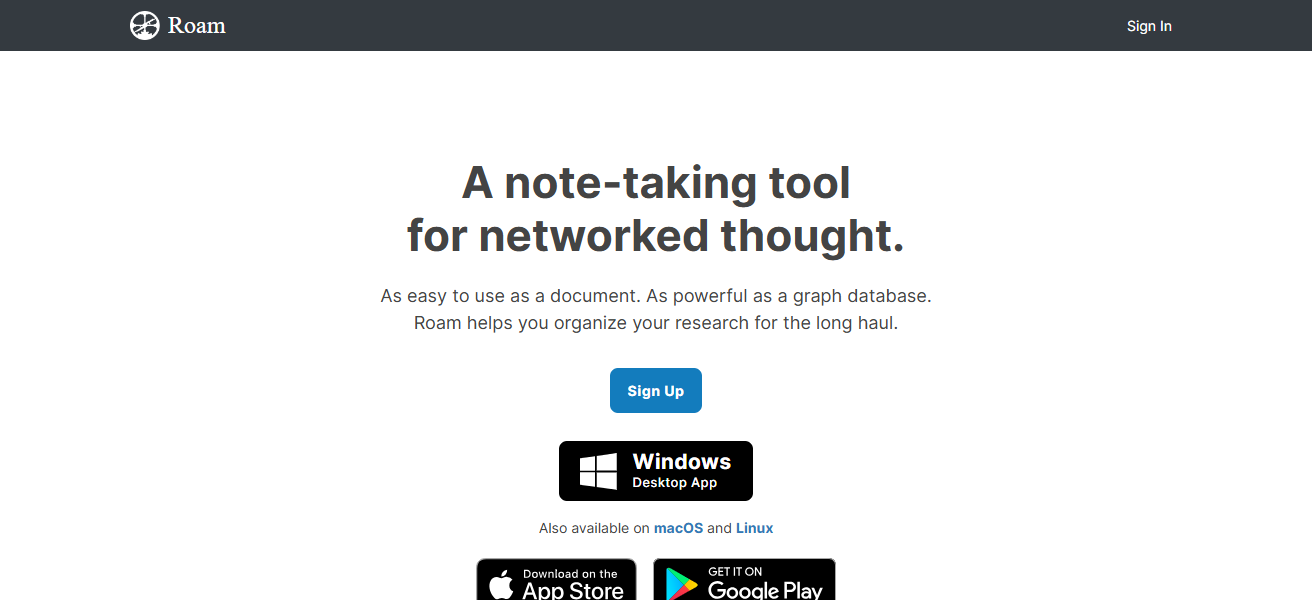
Users can create content ‘blocks’ which can be cited/linked anywhere, fostering active knowledge management. Roam offers daily notes, to-do lists, and back linking, which makes relationship tracking a breeze.
Roam is a writer’s and academic’s knowledge management tool of choice as it allows knowledge to be freely linked and prevents linear information storage.
Key Highlights – Roam Research
- With bi-directional linking, note networked thought.
- Content blocks can be referenced anywhere for dynamic idea.
- Backlinking and daily notes for enhanced organization.
- Excellent choice for researchers, writers, and academics who deal with a lot of information.
| Pros | Cons |
|---|---|
| Bi-directional linking enables networked thought. | Expensive subscription compared to alternatives. |
| Ideal for complex research, academics, and writing. | Interface can be confusing for new users. |
| Blocks allow dynamic referencing anywhere in notes. | Offline access is limited. |
| Daily notes and backlinking enhance idea organization. | Learning curve for knowledge graph structure. |
| Great for long-term knowledge management. | Minimal formatting and multimedia support. |
6. Simplenote
Simplenote is a fast and simple note-taking app that allows users to make text notes, checklists, and use tags in a distraction-free environment. Users can quickly type and organize notes.
Notes can be easily synced across devices, and notes can be recovered as Simplenote keeps track of edit history. The app offers a simple and efficient interface that allows users to access notes in a clutter-free environment.
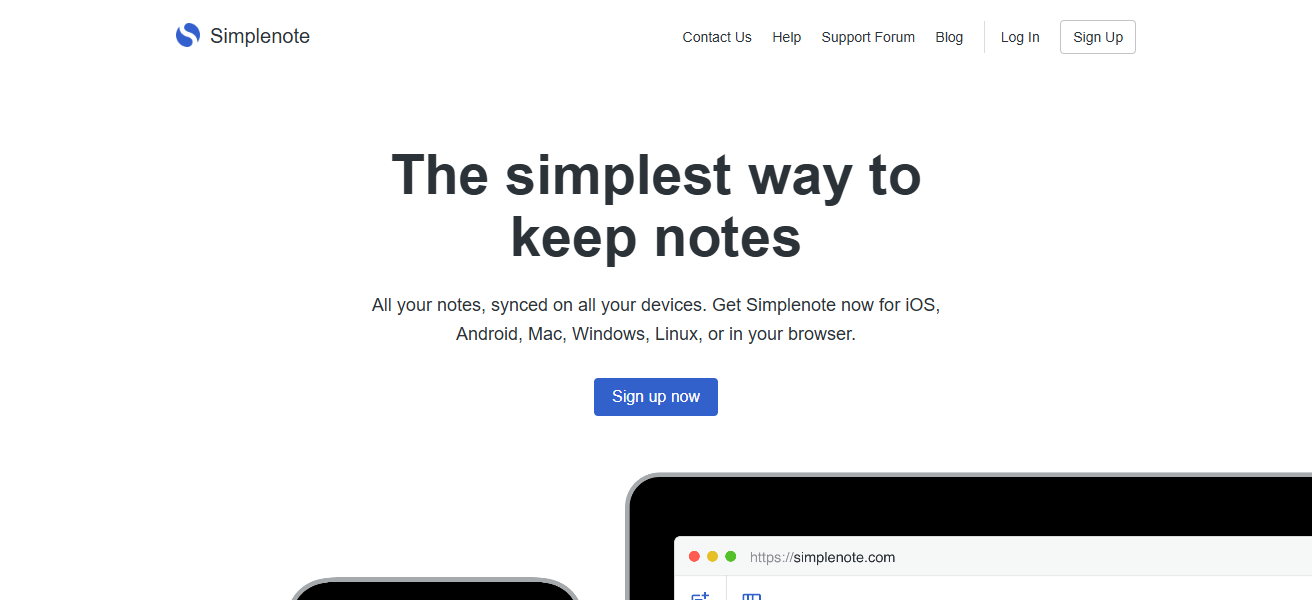
The app is perfect for users who like to quickly jot ideas down and do not want to deal with over complicated apps to increase productivity.
Key Highlights – Simplenote
- Take notes quickly and without distraction in a very simple, minimalist design.
- Has basic text notes, checklists, and tagging.
- Syncs across devices and has a version history.
- Provides simple, effective, and lightweight organization.
| Pros | Cons |
|---|---|
| Minimalist and distraction-free interface. | Limited features (no rich text or media attachments). |
| Fast note creation and syncing across devices. | Not ideal for advanced knowledge management. |
| Supports tagging and version history. | No collaborative editing features. |
| Lightweight and reliable. | Basic search functionality compared to others. |
| Free and easy to use. | Lacks visual organization like notebooks or graphs. |
7. Bear
Bear tailored more to Apple users provides a note taking app that has an amazing interface. Known for its note taking features and markdown support.
It has easy text editing features and users have the option for rich text editing. In addition to text users can insert images. There is easy organization with tags and sub tags that can be nested.
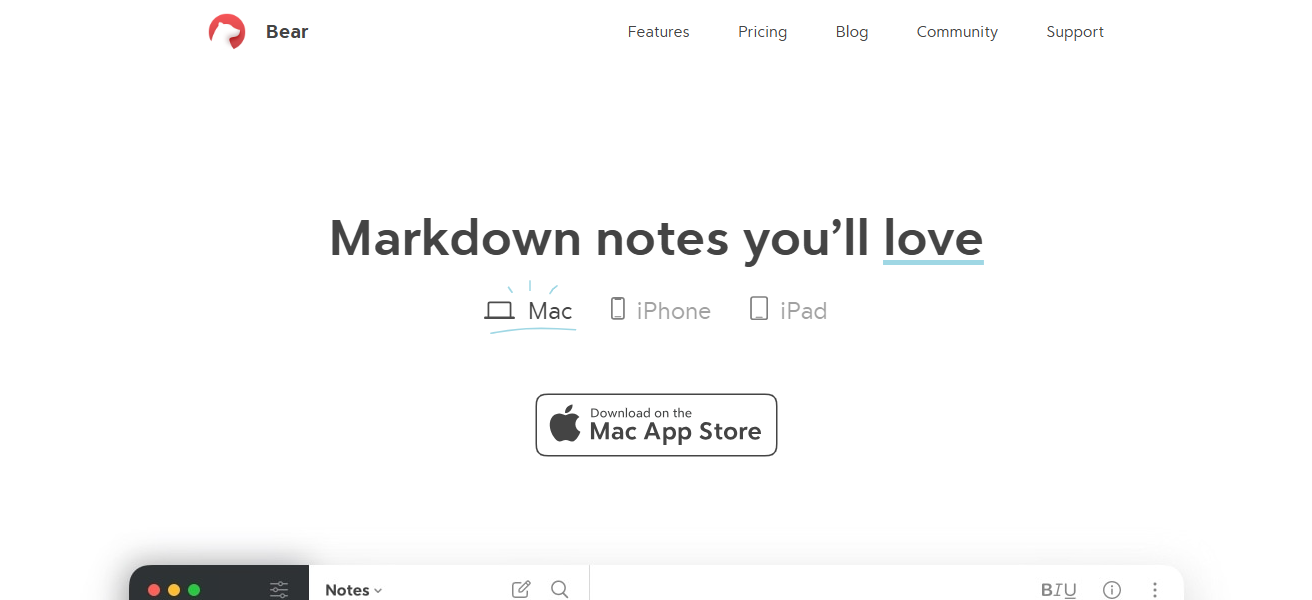
There is versatility for writers with notes that can be exported to various formats such as pdf, html and markdown. There is also the option to linked notes and code notes inline which is useful to writers and programmers.
It aesthetic note taking features with a regal touch. It a useful app to taking notes with an organized notes.
Key Highlights – Bear
- Nice and clean with support for rich text and markdown.
- Notes are organized with tag, subtag, and cross-note link structures.
- Notes can be exported as a PDF, HTML, or a markdown document.
- Great for aesthetically pleasing and productive writers and developers.
| Pros | Cons |
|---|---|
| Beautiful, clean interface optimized for Apple devices. | Only available on iOS and macOS. |
| Markdown support and rich text formatting. | Cross-device sync requires premium subscription. |
| Notes organized with tags and nested sub-tags. | Lacks full collaboration features. |
| Supports multiple export formats like PDF, HTML, Markdown. | Limited Windows or Android support. |
| Cross-note linking and inline code highlighting. | Can become expensive for premium features. |
8. Zoho Notebook
Zoho Notebook is a unique note-taking software where a user can design their own note cards and arrange their notes. Users can design text notes, checklists, sketches and even audio notes.
These notes can also be organized into notebooks which have customizable covers. The cloud sync features allows notes to be accessed across multiple devices.
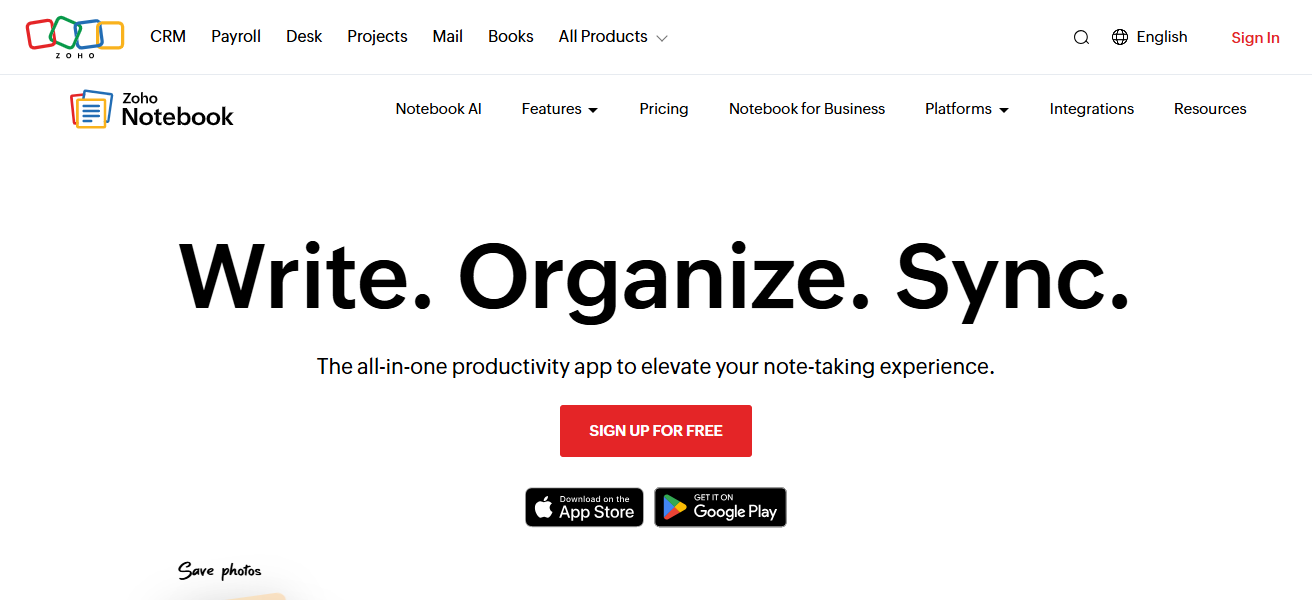
Users can also set collaboration features to allow note sharing and teamwork. The productivity features also integrates smoothly with other services provided by Zoho. The combination of seamless sync, sleek design, and multimedia support is a perfect solution.
Key Highlights – Zoho Notebook
- Notes are organized as visually pleasing and customizable cards.
- Notes can be text, sketches, checklists, and audio.
- Keeps notes in the cloud and has team collaboration features.
- For enhanced workflows, use with the Zoho productivity suite.
| Pros | Cons |
|---|---|
| Visually appealing with customizable notebook covers. | Less popular, smaller user community. |
| Supports text notes, sketches, checklists, and audio notes. | Some features limited to Zoho ecosystem. |
| Cloud sync across devices. | Offline functionality can be limited. |
| Collaboration features for teams. | No advanced knowledge graph or backlinking. |
| Integrates with Zoho productivity suite. | Mobile interface can feel crowded with many cards. |
9. Joplin
Joplin is an open-source note-taking application with an emphasis on privacy and data control. It’s markdown-compatible, supports text formatting, attachments, task lists and to-do lists.
Notes can be easily organized into notebooks, tagged, and searched. Joplin supports end-to-end encryption to keep your sensitive details secure.
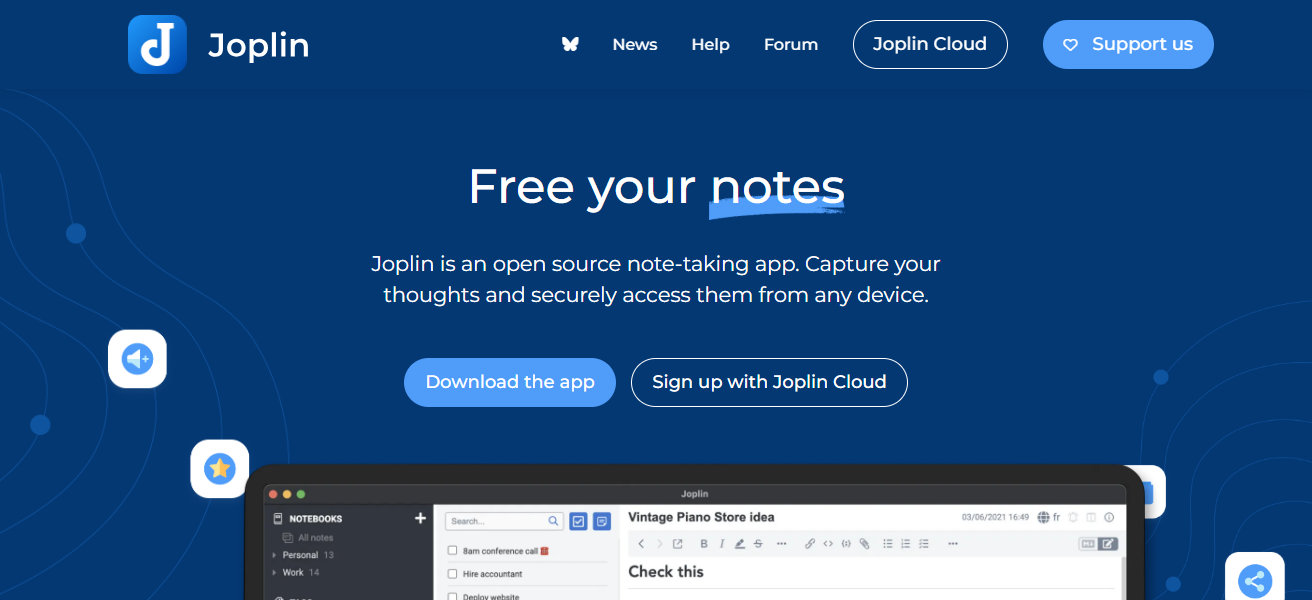
You can locally store your notes, and with cloud sync, you have control over your data. Joplin has desktop, mobile, and terminal versions.
It’s suitable for tech-savvy users, researchers, people who appreciate privacy, and those who like flexibility when customizing their note-taking processes.
Key Highlights – Joplin
- Your notes remain private with end-to-end encryption and the fact that they are open-source.
- Notes support markdown, attachments, and to-do lists.
- Notes can be organized with tags and notebooks , and are easily searchable.
- Desktop and mobile applications are offered on every operating system including terminal.
| Pros | Cons |
|---|---|
| Open-source with strong privacy and encryption. | Interface is basic compared to commercial apps. |
| Supports Markdown, attachments, and to-do lists. | Limited collaboration features. |
| Organizes notes with notebooks and tags. | Setup for syncing can be technical. |
| Local storage gives full data control. | Learning curve for non-technical users. |
| Cross-platform with desktop, mobile, and terminal versions. | Lacks polished UI compared to mainstream apps. |
10. Turtl
Turtl employs encryption and privacy as its key elements in its note taking app, It has end-to-end encryption giving its users full control over their notes, bookmarks and images.
It offers tagging and notebook structuring which makes information management and retrieval much easier.

It appeals to privacy-focused individuals and those in higher professions due to its multi-device functionality and open source software. It is ideal for personal journaling, research, and team collaboration.
Key Highlights – Turtl
- Get encryption to maintain privacy and control over your data.
- Notes can be organized with tags and notebooks.
- Your data is open source and works across multiple devices.
- Great for journaling, research, and team collaboration.
| Pros | Cons |
|---|---|
| End-to-end encryption for secure notes. | Limited features compared to commercial apps. |
| Supports tags and notebook organization. | Slower development and updates. |
| Open-source and privacy-focused. | Less intuitive interface for beginners. |
| Works across multiple devices. | Lacks advanced collaboration tools. |
| Ideal for confidential data, research, and journaling. | Minimal integration with third-party productivity apps. |
How To Choose Best Apps for Note Taking & Organization
- Check Platform Compatibility: Ensure that the app functions on your devices—Windows, Mac, iOS, Android, or cross-platform.
- Check App Usability: Ensure that the app matches your preferred workflow and longer learning curves are avoided.
- Check Organizing Options: Search for notebooks, tags, folders, backlinks, or cards for efficient organization.
- Check for collaboration Features: Determine if you need real-time update sharing and editing with a team.
- Check Privacy and Security: Review the app’s location and see if the app offers cloud storage or integrated encryption.
- Check for Customization Options: Determine if your productivity may be impacted by themes, plugins, and other customization.
- Check for Offline Access: Ensure you can modify your notes without having to be connected to the Internet.
- Check for Integration Options: Look for the app’s ability to sync with other programs such as calendars, tasks, and other productivity programs.
- Check for Pricing: Determine if the app’s pricing is equal to the offered features. Determine if standard notes apps are sufficient for your needs.
Cocnsluion
In cocnlsuion Choosing the Best Apps for Note Taking & Organization depends on your needs—whether it’s quick notes, research, or team collaboration.
Apps like Evernote, Google Keep, and Apple Notes offer simplicity and syncing, while Obsidian, Roam Research, and Joplin excel in linking ideas and privacy.
Selecting the right app can boost productivity, streamline your workflow, and keep your ideas organized efficiently.
FAQ
Google Keep and Simplenote are ideal for quick, distraction-free notes.
Apple Notes and Bear offer seamless integration with iOS and macOS devices.
Obsidian and Roam Research are perfect for linking ideas and long-term research.
Evernote, Zoho Notebook, and Apple Notes allow attachments and multimedia integration.