By using this site, you agree to the Privacy Policy and Terms of Use.
Accept
CoinworldstoryCoinworldstoryCoinworldstory
  • HOME
  • CRYPTO
    • AI
    • BOTS
    • ICO
    • AIRDROP
      • Featured Airdrops
    • Price Prediction
    • EXCHANGE
      • Best Centralized Exchange List 2026
      • Best Decentralized Exchange List 2025
    • ALTCOIN
    • Alt Coin Signal
    • Crypto Analysis
    • Bitcoin Loan
    • Bitcoin Mining
    • WALLETPRO
  • PR
    PR
    If You Looking For Submit Cryptocurrency Press Releases Than Coinworldstory Is Best Choice For Crypto Press Release Submission
    Show More
    Top News
    Crypto Market Ads presents the crypto marketing and advertising marketplace
    Crypto Market Ads presents the crypto marketing and advertising marketplace
    1 year ago
    SecuX Hardware Wallet Review : Read Our Complete Deep Review
    SecuX Hardware Wallet Review : Read Our Complete Deep Review
    2 years ago
    Poolz Announces the Establishment of $2 Million Fund to invest in Metaverse and NFT Gaming Projects
    3 years ago
    Latest News
    Chris Jericho to Join and Co-Create Official Community Traits for Kokopi Koalas™ NFT Collection
    4 hours ago
    Neura Closes Strategic Funding Round and Partnerships to Build Emotional AI with Persistent, User-Owned Memory
    9 hours ago
    MapleStory Universe Opens MSU Space and Launches Global Game Jam Competition as Part of MSU 2.0 Expansion
    2 days ago
    ChangeNOW Wins Best Digital Assets Fintech at the BeInCrypto Institutional 100 Awards 2026
    5 days ago
  • NEWS
    • Mining
    • Altcoins
    • Ban
    • BANKING/FINANCE NEWS
    • Bitcoin
    • Blockchain
    • CRYPTO CRIME
    • Ethereum
    • Exchange News
    • Government News
    NEWSShow More
    10 Hidden Liquidity Features Modern Brokers Secretly Use
    10 Hidden Liquidity Features Modern Brokers Secretly Use
    4 weeks ago
    10 Apps That Show What You Should Have Done Instead
    10 Apps That Show What You Should Have Done Instead
    2 months ago
    10 Best Crypto Conferences to Attend in 2026
    10 Best Crypto Conferences to Attend in 2026
    3 months ago
    Emerging Markets Favor Stablecoins Over Bitcoin
    Emerging Markets Favor Stablecoins Over Bitcoin
    4 months ago
    10 Solana DEXs With Lowest Slippage for Memecoin Trading
    10 Solana DEXs With Lowest Slippage for Memecoin Trading
    4 months ago
  • MORE
    • Guide
    • Only Best
    • Off Topic
    • Best Affiliate Marketing
    • Best Affiliate Programs
    • BOTS
    • Trusted Currency Exchanger Platform
    • Blockchain Games
    • Metaverse Review : Best Metaverse Program Review
    • Online Survey
    • Payment Platform
  • VPN
  • Contact Us
Reading: How To Create A Distribution List In Outlook – Quick & Easy Guide
Share
Notification Show More
Font ResizerAa
CoinworldstoryCoinworldstory
Font ResizerAa
  • ADVERTISEMENT
  • SUBMIT PR
  • CONTACT
  • GUEST POST
  • ABOUT US
  • DMCA
  • SITEMAP
  • DISCLAIMER
  • PRIVACY POLICY
  • llms.txt
  • Newsletter
Search
  • HOME
  • CRYPTO
    • AI
    • BOTS
    • ICO
    • AIRDROP
    • Price Prediction
    • EXCHANGE
    • ALTCOIN
    • Alt Coin Signal
    • Crypto Analysis
    • Bitcoin Loan
    • Bitcoin Mining
    • WALLETPRO
  • PR
  • NEWS
    • Mining
    • Altcoins
    • Ban
    • BANKING/FINANCE NEWS
    • Bitcoin
    • Blockchain
    • CRYPTO CRIME
    • Ethereum
    • Exchange News
    • Government News
  • MORE
    • Guide
    • Only Best
    • Off Topic
    • Best Affiliate Marketing
    • Best Affiliate Programs
    • BOTS
    • Trusted Currency Exchanger Platform
    • Blockchain Games
    • Metaverse Review : Best Metaverse Program Review
    • Online Survey
    • Payment Platform
  • VPN
  • Contact Us
Have an existing account? Sign In
Follow US
© 2022 Foxiz News Network. Ruby Design Company. All Rights Reserved.

Home » How To Create A Distribution List In Outlook – Quick & Easy Guide

Off Topic

How To Create A Distribution List In Outlook – Quick & Easy Guide

Osher Deri
Last updated: 26/09/2025 3:34 PM
By
Osher Deri
ByOsher Deri
Follow:
12 months ago
Share
8 Min Read
Disclosure: We are not a registered broker-dealer or an investment advisor. The services and information we offer are for sophisticated investors, and do not constitute personal investment advice, which of necessity must be tailored to your particular means and needs. !
How To Create A Distribution List In Outlook – Quick & Easy Guide
SHARE

In this post, Ill show you how to make a distribution list in Outlook so you can email a bunch of people at the same time.

Contents
  • What is a Distribution List in Outlook?
  • How To Create A Distribution List In Outlook
    • Step 1: Open Outlook and Go to Contacts
    • Step 2: Create a New Contact Group
    • Step 3: Name Your Group
    • Step 4: Add Members to the Group
    • Step 5: Save the Group
  • Importance of using Distribution lists for productivity and communication
  • How To Use the Distribution List
    • 1. Composing a New Email to the List
    • 2. How Outlook Auto-Fills the Group Name
    • 3. Editing the List Before Sending (Optional)
  • Managing Your Distribution List
    • Editing Members (Add/Remove)
    • Renaming the Group
    • Deleting a List You No Longer Need
  • Tips and Best Practices
    • Naming Conventions
    • Keep Your Lists Updated Regularly
    • Limitations and Size Considerations
    • Using Categories or Nested Groups
  • Troubleshooting Common Issues
    • Group Not Appearing in Email Compose
    • Some Recipients Not Receiving Emails
    • Permissions or Access Issues in Shared Environments
  • Conclusion
  • FAQ
    • Can I add external email addresses to a distribution list?
    • How do I edit a distribution list in Outlook?
    • What’s the difference between a distribution list and a Microsoft 365 Group?

Whether you run a small team, plan meetings, or organize events, a contact group keeps your inbox tidy and your day moving. Just read the quick steps below, and youll have your list ready and working in minutes.

What is a Distribution List in Outlook?

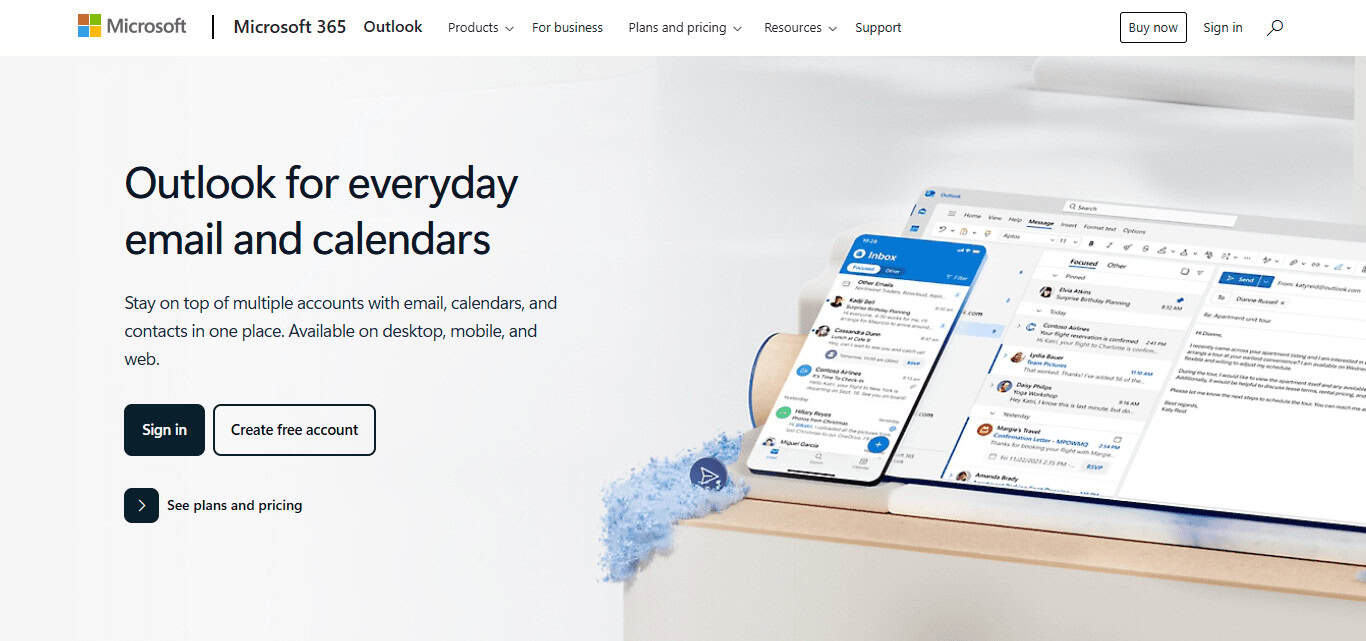
An Outlook distribution list is a handy tool that lets you bundle several email addresses under just one name. Rather than typing each persons address one by one, you send your message to the list and everyone on it receives a copy at the same time.

This feature works great for teams, project groups, departments, or any crowd that chats often by email. Using a list saves minutes, lowers the chance of mistakes, and keeps your inbox more organized.
- Advertisement -
What is a Distribution List in Outlook?

Inside Outlook, what many call a distribution list actually appears as a contact group and can hold both workmates and outside clients. Creating, changing, or sending to the group is simple in both the desktop app and the web version.

How To Create A Distribution List In Outlook

Step 1: Open Outlook and Go to Contacts

  • Start Outlook on your computer.
  • Look in the bottom-left corner and click the People icon or pick Contacts from the side menu.

Step 2: Create a New Contact Group

  • In the top ribbon, hit the Home tab.
  • Then press New Contact Group.

Step 3: Name Your Group

  • In the pop-up window, type a clear name for your list, like Marketing Team or Weekly Staff.

Step 4: Add Members to the Group

  • Click Add Members on the ribbon.
  • Pick one of the three places to add names:
    • From Outlook Contacts if the person is already saved.
    • From Address Book if your office uses a shared directory.
    • New E-mail Contact if the person has never been added.

Step 5: Save the Group

  • After you finish adding names, tap Save & Close.

Importance of using Distribution lists for productivity and communication
Importance of using Distribution lists for productivity and communication

Saves Time Type one name and the entire group opens up. No more hunting for every single address.

Improves Consistency Every member gets the same message at the same moment, so nobody misses out.

Boosts Efficiency Great for routine jobs, such as delivering weekly reports or sending out reminder links.

Simplifies Group Management Add or remove a teammate with two clicks. The list refreshes, and so does your inbox.

- Advertisement -

Enhances Team Collaboration Regular updates spark conversation, keeping projects moving and ideas aligned.

How To Use the Distribution List

1. Composing a New Email to the List

  • Start Outlook and click New Email at the top-left corner.
  • In the To box, begin typing the name of your group-something like Project Team.
  • When the group pops up, select it, and every person on that list will get your message.

2. How Outlook Auto-Fills the Group Name

  • The moment you write a few letters, Outlook usually shows a drop-down of matching names.
  • Just click the group you need, and the system fills the To line so you dont have to type it all.
  • Doing it this way speeds up sending and cuts the risk of wrong spellings.

3. Editing the List Before Sending (Optional)

  • After the group name appears, click the small + next to it to open the full address list.
  • Youll see every email in the bundle laid out before you.
  • If someone shouldnt receive this message, just delete their address here and press Send; the original group stays unchanged.

Managing Your Distribution List
Managing Your Distribution List

Editing Members (Add/Remove)

Open the group, hit Edit or Add Members to bring in new people, then choose any old entries and remove them. Always click Save so the list stays current.

Renaming the Group

Double-click the group to open its window. Change the name in the Name box to something clearer. Hit Save & Close and the new title will appear everywhere.

- Advertisement -

Deleting a List You No Longer Need

Find the old list in your Contacts. Right-click and choose Delete. The group vanishes, but everyone still sits safely in your main address book.

Tips and Best Practices

Naming Conventions

Give each group a clear name, like Sales Crew or Website Project Team , so everyone knows its purpose at a glance.

Keep Your Lists Updated Regularly

Quickly add new members or remove leavers, so messages reach the right people and no one feels out of the loop.

Limitations and Size Considerations

Outlook caps recipient numbers, so keep groups small and split big lists into focused chunks that suit each project or topic.

Using Categories or Nested Groups

Tag lists with color categories or build nested teams, making it easier to manage large email sets without losing track.

Troubleshooting Common Issues

Group Not Appearing in Email Compose

Make sure you saved the group to contacts; then start typing its name and watch for Outlooks auto-complete offer.

Some Recipients Not Receiving Emails

Look for wrong addresses, full inboxes, or spam filters that might quietly block your message to those specific people.

Permissions or Access Issues in Shared Environments

Confirm that your account is allowed to see and use shared groups, especially in locked-down Office 365 workplaces.

Conclusion

In short, making a distribution list-or contact group-in Outlook can turn clumsy group emailing into smooth, quick work. It cuts wasted minutes, keeps the same message going to the right people, and puts your addresses in one tidy spot.

Whether you push notes to your coworkers or send project news, that single click helps you stay on track and cuts mistakes. Get comfortable with this tool, and youll boost productivity while sharpening how you talk to friends, family, and coworkers alike.

FAQ

Can I add external email addresses to a distribution list?

Yes, you can add both internal and external email addresses manually when creating or editing the contact group.

How do I edit a distribution list in Outlook?

Go to your Contacts or People section, open the group, click Edit, then add or remove members as needed. Save your changes.

What’s the difference between a distribution list and a Microsoft 365 Group?

A distribution list only handles group email, while a Microsoft 365 Group includes shared files, calendar, and collaboration tools in addition to email.

Top 10 Security-First AI Agents for Banking & Finance 2026
10 Best AI SEO Tools for ChatGPT & Google Visibility Growth
10 Best ChatGPT SEO Strategies for Traffic Growth 2026
Top 10 AEO Strategies To Rank Higher in AI Search 2026
10 GEO Optimization Techniques For AI-Powered Search Engines 2026
Share This Article
Facebook Pinterest Whatsapp Whatsapp LinkedIn Tumblr Reddit VKontakte Telegram Threads Bluesky Email Copy Link Print
Previous Article How To Create A Drop Down List In Excel (Step-by-Step Guide) How To Create A Drop Down List In Excel (Step-by-Step Guide)
Next Article How To Create Engaging Instagram Carousels -That Boost Engagement How To Create Engaging Instagram Carousels -That Boost Engagement
TOP CRYPTO EXCHANGES

Best Crypto Exchanges

Kraken
Secure Trading
Visit
Bybit
Low Fees
Visit
HTX
Global Exchange
Visit
CoinSwitch
Easy INR Access
Visit
Poloniex
Altcoin Markets
Visit
TOP CRYPTO CASINOS
Best Crypto Casinos
Roobet
Roobet
Popular Casino
Visit
Stake
Stake
Top Sportsbook
Visit
BC.Game
BC.Game
Crypto Friendly
Visit
Rollbit
Rollbit
Casino + Trading
Visit
Duelbits
Duelbits
Instant Withdrawals
Visit

Find Us on Socials

TOP CRYPTO TOOLS
Best Crypto Tools
TradingView
Charts & Analysis
Visit
CoinGlass
Liquidation Data
Visit
CoinMarketCap
Market Tracking
Visit
DexScreener
DEX Analytics
Visit
Arkham
Wallet Tracking
Visit

Coinworldstory Ads

photo 2026 06 09 122418 17810237260M1eFgbTDe
Chris Jericho to Join and Co-Create Official Community Traits for Kokopi Koalas™ NFT Collection
Press Releases
10 Best Prediction Market Liquidity Pools for Macro Event Bets
CRYPTO
Best Dynamic IP Tokens Backing Independent Creative Rights
10 Best Dynamic IP Tokens Backing Independent Creative Rights
Banking & Finance
1200 x 720 1780934465RtyskITF8P
Neura Closes Strategic Funding Round and Partnerships to Build Emotional AI with Persistent, User-Owned Memory
Press Releases

Latest Published

10 Best AEO Tools For Voice and AI Search Optimization

10 Best AEO Tools For Voice and AI Search Optimization

1 week ago
10 Top Frameworks for Google AI Overview Product Rankings

10 Top Frameworks for Google AI Overview Product Rankings

2 weeks ago
10 Best AI Voice Search Tools for Smart Shopping Devices 2026

10 Best AI Voice Search Tools for Smart Shopping Devices 2026

2 weeks ago
10 Best Home Gym Equipment Essentials Under $500 Guide 2026

10 Best Home Gym Equipment Essentials Under $500 Guide 2026

2 weeks ago
◈
CoinWorldStory
Crypto News, Reviews & Blockchain Insights
✓ Editorial Standards ✓ Research Driven ✓ Updated Daily
📧 Email Us At: support@coinworldstory.com 💬 Join Telegram
nexo banner
  • ADVERTISEMENT
  • SUBMIT PR
  • CONTACT
  • GUEST POST
  • ABOUT US
  • DMCA
  • SITEMAP
  • DISCLAIMER
  • PRIVACY POLICY
  • llms.txt
  • Newsletter
10 Best SaaS Tools for Client Onboarding Automation Guide
Trending
Fake Airdrop Scam Explained: Protect Your Crypto Assets
Trending
10 Best Games To Play With Girlfriend Online – Top Picks
Trending
CoinworldstoryCoinworldstory
Follow US
© Coinworldstory News Network. Cws Design Company. All Rights Reserved.
  • ADVERTISEMENT
  • SUBMIT PR
  • CONTACT
  • GUEST POST
  • ABOUT US
  • DMCA
  • SITEMAP
  • DISCLAIMER
  • PRIVACY POLICY
  • llms.txt
  • Newsletter
coinworldstory logo coinworldstory logo
Welcome Back!

Sign in to your account

Username or Email Address
Password

Lost your password?