By using this site, you agree to the Privacy Policy and Terms of Use.
Accept
CoinworldstoryCoinworldstoryCoinworldstory
  • HOME
  • CRYPTO
    • AI
    • BOTS
    • ICO
    • AIRDROP
      • Featured Airdrops
    • Price Prediction
    • EXCHANGE
      • Best Centralized Exchange List 2026
      • Best Decentralized Exchange List 2025
    • ALTCOIN
    • Alt Coin Signal
    • Crypto Analysis
    • Bitcoin Loan
    • Bitcoin Mining
    • WALLETPRO
  • PR
    PR
    If You Looking For Submit Cryptocurrency Press Releases Than Coinworldstory Is Best Choice For Crypto Press Release Submission
    Show More
    Top News
    Vite
    Vite Prepares For Launch In Mauritius
    2 years ago
    Bankcoinreserve.io Review : Digitally Mined Crypto Assets/Commodities
    Bankcoinreserve.io Review : Digitally Mined Crypto Assets/Commodities
    5 years ago
    ENTER Art Fair 2021 And SpaceSeven Unveil The Nordic’s First NFT Marketplace Powered By Concordium
    2 years ago
    Latest News
    MapleStory Universe Opens MSU Space and Launches Global Game Jam Competition as Part of MSU 2.0 Expansion
    16 hours ago
    ChangeNOW Wins Best Digital Assets Fintech at the BeInCrypto Institutional 100 Awards 2026
    4 days ago
    Premu Opens User-Created, Leveraged Prediction Markets Ahead of the 2026 World Cup
    4 days ago
    Whale.io Launches Whale Printer: $WHALE Token Staking
    5 days ago
  • NEWS
    • Mining
    • Altcoins
    • Ban
    • BANKING/FINANCE NEWS
    • Bitcoin
    • Blockchain
    • CRYPTO CRIME
    • Ethereum
    • Exchange News
    • Government News
    NEWSShow More
    10 Hidden Liquidity Features Modern Brokers Secretly Use
    10 Hidden Liquidity Features Modern Brokers Secretly Use
    4 weeks ago
    10 Apps That Show What You Should Have Done Instead
    10 Apps That Show What You Should Have Done Instead
    2 months ago
    10 Best Crypto Conferences to Attend in 2026
    10 Best Crypto Conferences to Attend in 2026
    3 months ago
    Emerging Markets Favor Stablecoins Over Bitcoin
    Emerging Markets Favor Stablecoins Over Bitcoin
    4 months ago
    10 Solana DEXs With Lowest Slippage for Memecoin Trading
    10 Solana DEXs With Lowest Slippage for Memecoin Trading
    4 months ago
  • MORE
    • Guide
    • Only Best
    • Off Topic
    • Best Affiliate Marketing
    • Best Affiliate Programs
    • BOTS
    • Trusted Currency Exchanger Platform
    • Blockchain Games
    • Metaverse Review : Best Metaverse Program Review
    • Online Survey
    • Payment Platform
  • VPN
  • Contact Us
Reading: How To Create Graphs In PowerPoint: Step-by-Step Guide
Share
Notification Show More
Font ResizerAa
CoinworldstoryCoinworldstory
Font ResizerAa
  • ADVERTISEMENT
  • SUBMIT PR
  • CONTACT
  • GUEST POST
  • ABOUT US
  • DMCA
  • SITEMAP
  • DISCLAIMER
  • PRIVACY POLICY
  • llms.txt
  • Newsletter
Search
  • HOME
  • CRYPTO
    • AI
    • BOTS
    • ICO
    • AIRDROP
    • Price Prediction
    • EXCHANGE
    • ALTCOIN
    • Alt Coin Signal
    • Crypto Analysis
    • Bitcoin Loan
    • Bitcoin Mining
    • WALLETPRO
  • PR
  • NEWS
    • Mining
    • Altcoins
    • Ban
    • BANKING/FINANCE NEWS
    • Bitcoin
    • Blockchain
    • CRYPTO CRIME
    • Ethereum
    • Exchange News
    • Government News
  • MORE
    • Guide
    • Only Best
    • Off Topic
    • Best Affiliate Marketing
    • Best Affiliate Programs
    • BOTS
    • Trusted Currency Exchanger Platform
    • Blockchain Games
    • Metaverse Review : Best Metaverse Program Review
    • Online Survey
    • Payment Platform
  • VPN
  • Contact Us
Have an existing account? Sign In
Follow US
© 2022 Foxiz News Network. Ruby Design Company. All Rights Reserved.

Home » How To Create Graphs In PowerPoint: Step-by-Step Guide

Off Topic

How To Create Graphs In PowerPoint: Step-by-Step Guide

Indu Sonali
Last updated: 13/02/2026 5:09 PM
By
Indu Sonali
ByIndu Sonali
Follow:
11 months ago
Share
10 Min Read
Disclosure: We are not a registered broker-dealer or an investment advisor. The services and information we offer are for sophisticated investors, and do not constitute personal investment advice, which of necessity must be tailored to your particular means and needs. !
How To Create Graphs In PowerPoint: Step-by-Step Guide
SHARE

In this article, I will cover creating graphs in PowerPoint with a step-by-step approach. In any presentation, charts and graphs are vital for conveying information in a clear and logical manner.

Contents
  • What Is PowerPoint?
  • How To Create Graphs In PowerPoint
    • Start PowerPoint and Navigate to a Slide
    • Go To The Insert Tab
    • Click On Chart
    • Choose a Specific Chart Style
    • Make Changes Directly In The Spreadsheet
    • Exit the Spreadsheet after Inputing Your Data
    • Adjust The Appearance Of The Chart
    • Edit The Chart Title And Add Labels
    • Apply Optional Chart Animations
    • Save and Present
  • When and Why to Use Graphs in PowerPoint
    • When to Use Graphs:
    • Purpose of Using Graphs PowerPoint Presentation:
  • Advanced Formatting and Design Tips
    • Selecting Appropriate Color Schemes for Branding
    • Sequentially Animating Graphs to Show Individual Data Points
    • Shadows, Transparency, or 3D Effects on Graphs and Charts
    • Ensuring Font Size, Graph Readability, and High Contrast Colors for Accessibility
  • Importing Graphs from Excel
    • Copy the Chart from Excel
    • Choose Embedding or Linking
    • Adjust Formatting for Consistency
    • Test Data Update (if Linked)
  • Common Mistakes To Avoid
    • Overloading Graphs with Too Much Data
    • Poor Contrast or Confusing Colors
    • Misleading Chart Types or Axes
    • Ignoring Your Audience’s Data Literacy Level
  • Conclusion
  • FAQ
    • How do I insert a graph?
    • What types of charts are available?
    • Can I animate graphs?

Whether it is for a business report, an academic assignment, or a team brief, PowerPoint has inbuilt features that allow you to create charts professionally and within minutes. So, let’s look at how to insert and adjust the graphs and their elements as needed.

What Is PowerPoint?

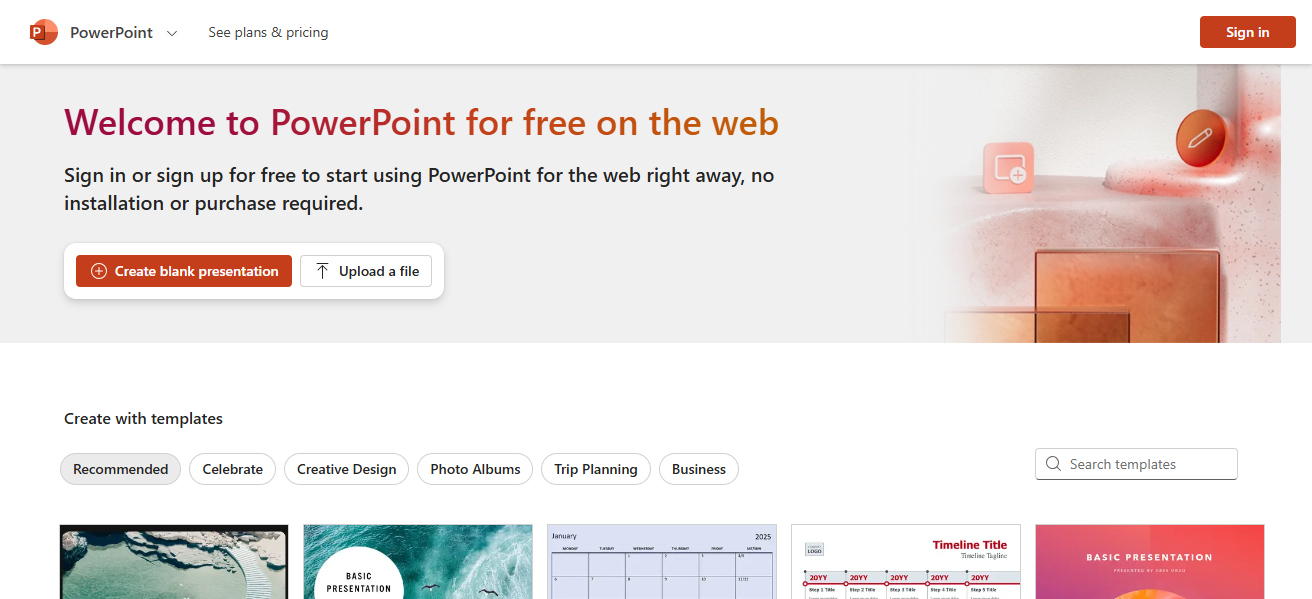
PowerPoint is a presentation application developed by Microsoft and enables users to create slideshows incorporating text, photographs, charts, videos, and animations.

Widely used in businesses as well as in schools and other professional institutions, it aids in visual and effective communication.
- Advertisement -
What Is PowerPoint?

It is one of the applications in Microsoft Office and allows users to create both in-person and online presentations using a wide range of design templates and other tools.

Visit Now

How To Create Graphs In PowerPoint

Illustrative Walkthrough: Creating Graphs in PowerPoint (Desktop Version)
How To Create Graphs In PowerPoint

Start PowerPoint and Navigate to a Slide

Open PowerPoint. Move to the slide where you plan to place your graph. You can either use an existing slide or create a new one in the presentation.

Go To The Insert Tab

As you scan the upper menu ribbon, ensure to click the Insert tab. This section allows you to add elements such as pictures, charts, tables, and shapes to your slide.

Click On Chart

In the Insert tab, click on Chart. A dialogue box that contains a variety of data representation charts will appear, including bar, line, pie, column, and others for data visualization.

- Advertisement -

Choose a Specific Chart Style

Choose the chart you want, for instance Column Chart, and press OK. PowerPoint will place the chart on the slide, and an Excel-type spreadsheet will pop up to enter the data.

Make Changes Directly In The Spreadsheet

As an example, fill in Q1, Q2, Q3, Q4 as quarterly sales numbers alongside corresponding values to replace the default data in the pop-up spreadsheet.

Exit the Spreadsheet after Inputing Your Data

The graph on your slide will refresh automatically after closing the spreadsheet window and will reflect all data categories and their values.

- Advertisement -

Adjust The Appearance Of The Chart

Change fonts, add new colors, styles, titles and labels using the Chart Design and Format tabs. The chart can also be resized and moved, if necessary, to fit to your slide.

Edit The Chart Title And Add Labels

With axis labels and legends enabled, the data can be easily explained and interacted with by the audience. Click on the title to change it to something like “Quarterly Sales”.

Apply Optional Chart Animations

For audience retention, go to the Animations tab and set the chart to Fade or Wipe with customized reveal and set the order to how the individual elements of the chart are shown during the slideshow.

Save and Present

After completing the chart work, do not forget to save your presentation. During your presentation, the chart will assist you in portraying your data visually which reinforces the impact of your communication.

When and Why to Use Graphs in PowerPoint

When to Use Graphs:

To Present Data VisuallyIf you have numbers to explain or convey, and they can be made more understandable using a visual representation rather than a table or a simple text graph, then you should use graphs.

To Show ComparisonsFor value comparisons done between different groups, periods, or even categories like sales against a region or year-over-year growth comparison, graph will simply reveal the differences quite well.

To Illustrate Trends Over TimeTracking changes, progress, or performance over the course of months, quarters, or years is best done using line graphs and bar charts as they can effectively illustrate trends.

To Highlight Proportions or Parts of a WholeIndividual segments that make up a particular total can easily be demonstrated through pie charts and budget allocation or market share can be explained.

To Support Key Points in Reports or PitchesData supporting a recommendation or business case is best put forward using a graph as it makes the insight easily digestible and far more persuasive.

Purpose of Using Graphs PowerPoint Presentation:

Elaborated Data ExplanationSpreadsheets can be transformed into illustrations with the aid of graphs; therefore, insights can be captured within seconds.

Audience Makes Interaction Better:The usage of visuals transforms your presentation into a more engaging one as compared with plain numbers and paragraphs.

Common Practice of Improvement of Data Retention:People remember better when the information is presented visually, verbally, or textually.

Patterns and Meaning Relationships:It assists you in explaining your data by telling more straightforward stories concerning trends, outliers, and correlations.

Well-Credentialed and Design Looks:Graphs enhance the quality of the presentations or reports to bring the message done with thorough preparation.

Advanced Formatting and Design Tips
Advanced Formatting and Design Tips

Selecting Appropriate Color Schemes for Branding

Incorporate your company or project’s brand colors across the graphs to maintain visual identity, achieve cohesion within your slides, and reinforce professionalism throughout your presentation’s design.

Sequentially Animating Graphs to Show Individual Data Points

Use animations to reveal chart components step-by-step. This method captures audience focus, minimizes information overload, and enables you to provide an explanation for each revealed element.

Shadows, Transparency, or 3D Effects on Graphs and Charts

Improve visuals with scatter graphics using soft shadows or translucency, but avoid overuse of 3D effects as they may alter the data presentation and hinder clarity. Strive for simplicity.

Ensuring Font Size, Graph Readability, and High Contrast Colors for Accessibility

Use larger text that is readable up to several meters away, high contrast colors, and eliminate unnecessary details. Understanding accessibility improves visual comprehension for all viewers, including those with disabilities.

Importing Graphs from Excel

Copy the Chart from Excel

Open Excel, highlight the chart, right-click on it, selecting Copy to make the chart ready for PowerPoint presentation.

Choose Embedding or Linking

You can either embed (static copy) or link (dynamic updates) the chart. Choose based on whether changes will happen to Excel data.

Adjust Formatting for Consistency

Ensure blend by matching fonts, colors, and sizes with your slide design so the chart looks integrated with the rest of your presentation.

Test Data Update (if Linked)

Test functionality by altering data in Excel; if linked, the PowerPoint chart should refresh automatically

Common Mistakes To Avoid

Overloading Graphs with Too Much Data

Graph clutter stems from cramming too much data. Remember: focus and simplicity lead to clarity.

Poor Contrast or Confusing Colors

Similar and low contrast colors can render charts unreadable. High distinction and contrasting colors enhance visability while depicting data.

Misleading Chart Types or Axes

Data can be distorted by the wrong chart type or manipulation of axes. Always use formats which accurately depict your intent.

Ignoring Your Audience’s Data Literacy Level

Graph elaboration and wording modifications are necessary for viewers who lack expertise, tailoring complexity to their familiarity with the subject.

Conclusion

In conclusion, Using PowerPoint for graphing creates opportunities for effective data visualization. Audiences are likely to interact more with your presentation if you tailor it to their interests. In any case, their attention will help get your message across.

Presentations carry a lot of weight in today’s business world and people prefer if their message is well organized and simple through text and visuals.

In the business environment of today, every minute wasted means loss of productivity, hence time is measured in value so graphs are important.

FAQ

How do I insert a graph?

Go to Insert > Chart, choose a type, and enter your data in the spreadsheet.

What types of charts are available?

PowerPoint offers bar, line, pie, column, scatter, and more.

Can I animate graphs?

Yes. Use the Animations tab to reveal elements step-by-step during your presentation.

Top 10 Security-First AI Agents for Banking & Finance 2026
10 Best AI SEO Tools for ChatGPT & Google Visibility Growth
10 Best ChatGPT SEO Strategies for Traffic Growth 2026
Top 10 AEO Strategies To Rank Higher in AI Search 2026
10 GEO Optimization Techniques For AI-Powered Search Engines 2026
Share This Article
Facebook Pinterest Whatsapp Whatsapp LinkedIn Tumblr Reddit VKontakte Telegram Threads Bluesky Email Copy Link Print
Previous Article MultiBank Group Announces 7 Million $MBG Tokens Sold Out in Under One Hour During Initial Pre-Sale MultiBank Group Announces 7 Million $MBG Tokens Sold Out in Under One Hour During Initial Pre-Sale
Next Article How Much Is the Selling Fee on ebay? Complete Guide for Sellers How Much Is The Selling Fee on ebay? Complete Guide for Sellers
TOP CRYPTO EXCHANGES

Best Crypto Exchanges

Kraken
Secure Trading
Visit
Bybit
Low Fees
Visit
HTX
Global Exchange
Visit
CoinSwitch
Easy INR Access
Visit
Poloniex
Altcoin Markets
Visit
TOP CRYPTO CASINOS
Best Crypto Casinos
Roobet
Roobet
Popular Casino
Visit
Stake
Stake
Top Sportsbook
Visit
BC.Game
BC.Game
Crypto Friendly
Visit
Rollbit
Rollbit
Casino + Trading
Visit
Duelbits
Duelbits
Instant Withdrawals
Visit

Find Us on Socials

TOP CRYPTO TOOLS
Best Crypto Tools
TradingView
Charts & Analysis
Visit
CoinGlass
Liquidation Data
Visit
CoinMarketCap
Market Tracking
Visit
DexScreener
DEX Analytics
Visit
Arkham
Wallet Tracking
Visit

Coinworldstory Ads

10 Best Decentralized Escrow Scripts for Crypto Deals 2026
Uncategorized Folder & File At Coinworldstory
10 Best Local Fiat Cash-to-Crypto Gateways Without Banks 2026
Best Centralized Exchange List 2026
10 Best Open-Source Python Crypto Trading Bots Offline
BOTS
AI vs Technical Analysis In Crypto Trading Guide 2026
Artificial Intelligence

Latest Published

10 Best AEO Tools For Voice and AI Search Optimization

10 Best AEO Tools For Voice and AI Search Optimization

1 week ago
10 Top Frameworks for Google AI Overview Product Rankings

10 Top Frameworks for Google AI Overview Product Rankings

2 weeks ago
10 Best AI Voice Search Tools for Smart Shopping Devices 2026

10 Best AI Voice Search Tools for Smart Shopping Devices 2026

2 weeks ago
10 Best Home Gym Equipment Essentials Under $500 Guide 2026

10 Best Home Gym Equipment Essentials Under $500 Guide 2026

2 weeks ago
◈
CoinWorldStory
Crypto News, Reviews & Blockchain Insights
✓ Editorial Standards ✓ Research Driven ✓ Updated Daily
📧 Email Us At: support@coinworldstory.com 💬 Join Telegram
nexo banner
  • ADVERTISEMENT
  • SUBMIT PR
  • CONTACT
  • GUEST POST
  • ABOUT US
  • DMCA
  • SITEMAP
  • DISCLAIMER
  • PRIVACY POLICY
  • llms.txt
  • Newsletter
10 Best SaaS Tools for Client Onboarding Automation Guide
Trending
Fake Airdrop Scam Explained: Protect Your Crypto Assets
Trending
10 Best Games To Play With Girlfriend Online – Top Picks
Trending
CoinworldstoryCoinworldstory
Follow US
© Coinworldstory News Network. Cws Design Company. All Rights Reserved.
  • ADVERTISEMENT
  • SUBMIT PR
  • CONTACT
  • GUEST POST
  • ABOUT US
  • DMCA
  • SITEMAP
  • DISCLAIMER
  • PRIVACY POLICY
  • llms.txt
  • Newsletter
coinworldstory logo coinworldstory logo
Welcome Back!

Sign in to your account

Username or Email Address
Password

Lost your password?