In this post, I will highlight the most effective methods for screen recording with PowerPoint and its built-in features alongside some clever methods.
For tutorial, lecture and demo creators, PowerPoint makes available capture screen feature, voice over, slide show recording, and even video export which makes it very easy to record the screen and does not require any external software.
Key Points & Best Ways To Record Screen With Powerpoint List
| Method | Key Point |
|---|---|
| Use PowerPoint’s Built-in Screen Recorder | Go to Insert → Screen Recording to capture any part of your screen. |
| Record with Audio | Enable microphone before recording for narration. |
| Select Recording Area | Click Select Area to capture only the region you want. |
| Use Keyboard Shortcut | Press Windows + Shift + R to quickly start/stop screen recording. |
| Record Webcam with Screen (Workaround) | Use OBS or external app and embed the video in PowerPoint. |
| Save as Video | After recording, export the presentation as MP4 from File → Export. |
| Add Annotations Before Recording | Insert arrows, shapes, or text in slides to highlight key points. |
| Use Presenter View | Record while using Presenter View to show notes without cluttering screen. |
| Record Slide Show with Narration | Use Slide Show → Record Slide Show to record slides + voice + timings. |
| Trim Video Inside PowerPoint | Use Playback tab to trim beginning or end of the recorded video. |
10 Best Ways To Record Screen With Powerpoint
1.Use PowerPoint’s Built-in Screen Recorder
PowerPoint offers the option of recording screens directly from the program. It will enable capturing any ongoing activity on your screen. In order to use this feature, navigate to the Insert tab and click on Screen Recording.
A control dock appears allowing you to select the area you wish to record and begin capturing. After finishing recording, the video will appear on the slide automatically.

This technique works best for tutorials, demos, or any type of walkthroughs and requires no additional software. All recorded clips may be adjusted in size or position and may also be exported as standalone files.
| Feature | Details |
|---|---|
| Access Location | Insert → Screen Recording |
| Interface | On-screen control dock with options |
| Insertion | Automatically embeds recording in current slide |
| Export Option | Can be saved as a video or reused in slides |
| Use Case | Ideal for tutorials, app demos, or walkthroughs |
2.Record with Audio
When utilizing the screen recording feature on PowerPoint, adding a voice-over or sound effect is optional. Be sure your microphone is working, and select Audio on the toolbar before the recording starts.
This is helpful for voicing over specific actions on screen or providing some background commentary. It provides transparency on what is being recorded.

You can edit or replace audio later, but capturing clear audio during the screen recording phase ensures enhanced time management and quality for the presentation.
| Feature | Details |
|---|---|
| Microphone Support | Yes, external/internal microphone |
| Audio Toggle | Enable/disable audio from recording toolbar |
| Narration Integration | Embedded with screen video in slide |
| Clarity Boost | Provides context and explanation |
| Use Case | Training videos, tutorials, narrated presentations |
3.Select Recording Area
It is possible to record only a part of the screen instead of the whole display on PowerPoint. After launching the screen recorder, hit Select Area, and drag the crosshairs to the rectangle delineating the space you wish to record.
This functionality is very helpful in guiding viewers’ focus while eliminating additional superfluous content.
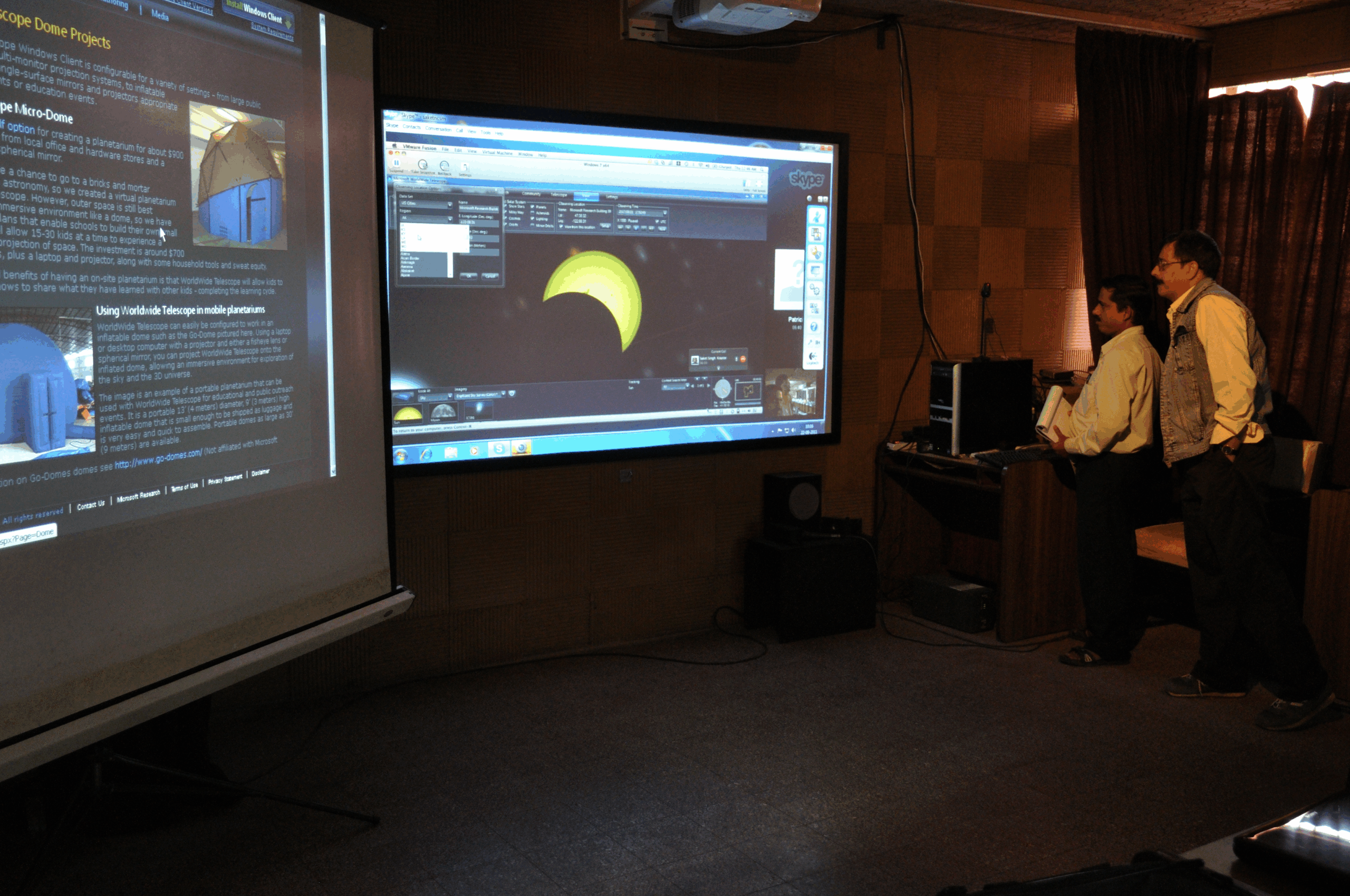
While presenting a software application or streaming through a webpage, selecting a particular area lends a neat and polished impression. Also, you have the option of full screen by selecting the entire display.
| Feature | Details |
|---|---|
| Partial Screen Recording | Select a specific region instead of full screen |
| Drag-and-Select Tool | Crosshair tool for area selection |
| Focus Control | Helps highlight only key parts of screen |
| Distraction Reduction | Removes unnecessary elements from recording |
| Use Case | Demos, focused tutorials, app features |
4.Use Keyboard Shortcut
The recording process can be sped up significantly with the use of keyboard shortcuts. For those using PowerPoint’s screen recorder, the recording can be started or stopped using the Windows + Shift + R shortcut.
This feature is useful for those who prefer to keep their mouse steady during the recording so as to not disrupt what is being shown on the screen.
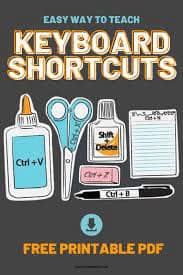
For those who capture content multiple times, this is easier than having to deal with mouse movements. As with any shortcut, it is best to practice it prior to using it in real situations.
| Feature | Details |
|---|---|
| Shortcut Command | Windows + Shift + R |
| Speed and Ease | Quickly start/stop recording |
| Hands-Free Control | Useful when mouse control is limited |
| Seamless Recording | Reduces movement distraction |
| Use Case | Fast-paced recording scenarios |
5.Record Webcam with Screen (Workaround)
The screen capture feature in PowerPoint can’t record webcam video simultaneously. As a solution, you can record the screen and webcam video separately with OBS Studio and then insert the video into PowerPoint.
It allows you to present face-to-camera video alongside screen content. It helps add a personal touch which works well in tutorials and business presentations.
After recording the video, you can seamlessly integrate it into PowerPoint by dragging and dropping it and adjusting its size and position in the slide.
| Feature | Details |
|---|---|
| Native Support | Not available in PowerPoint |
| Workaround Tool | Use OBS Studio or webcam recorder |
| Embedding in Slide | Insert recorded video into slide |
| Personal Touch | Adds human presence in the presentation |
| Use Case | Course videos, tutorials, speaker intros |
6.Save as Video
Simply by adding the screen recording to your PowerPoint, you can proceed to export your entire presentation as a video file. Click on File → Export → Create a Video. Select the video quality and options for voiceovers and automatic slide transitions.
PowerPoint will then process all the slides and any video clips inserted, creating an MP4 file ready for online sharing, YouTube uploads, or embedding into emails.

This method effectively transforms your presentations into accessible training or educational resources that can be consumed at the learner’s convenience.
| Feature | Details |
|---|---|
| Export Format | MP4 video |
| Export Path | File → Export → Create a Video |
| Resolution Options | Presentation Quality, Internet Quality, etc. |
| Narration Support | Includes audio and slide timings |
| Use Case | YouTube, online courses, shareable lessons |
7.Add Annotations Before Recording
Think about adding some arrows, text boxes, or highlights to your slides that will be shown during the screen recording. These suggestive visuals help in directing the audience’s focus and understanding the content.
Considering that PowerPoint’s screen recorder can’t draw on the screen while recording, planning ahead by including comments drawing attention to essential components will ensure adequate emphasis.
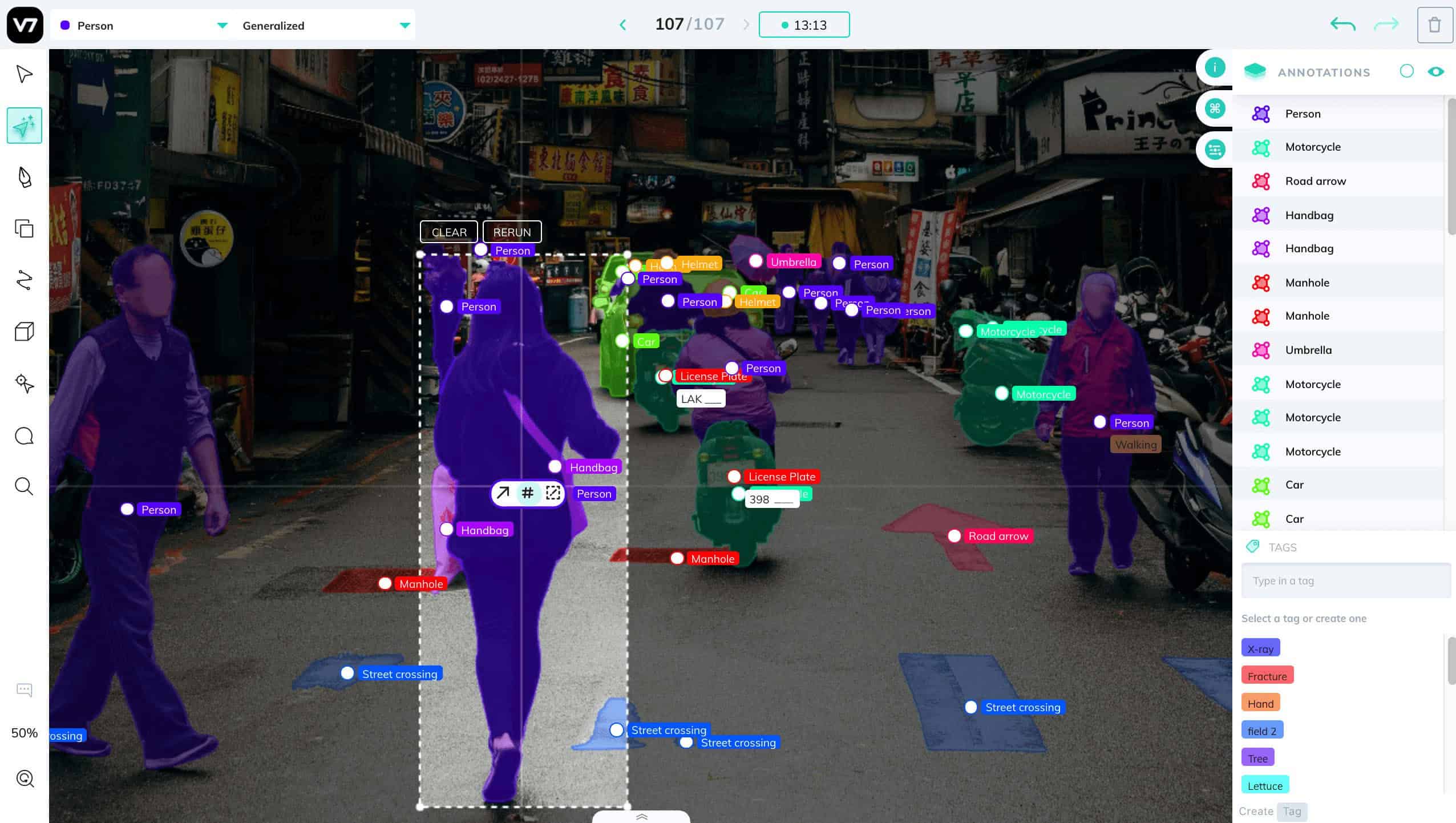
Also, these comments can be animated to be displayed during specific moments which adds to the clarity of your presentation. Applying such techniques increases comprehension and retention for the audience, especially in teaching videos.
| Feature | Details |
|---|---|
| Annotation Tools | Shapes, arrows, highlights, text boxes |
| Animation Support | Add entrance/exit animations for clarity |
| Slide Preparation | Enhances clarity before screen capture |
| Emphasis on Key Points | Direct viewer attention visually |
| Use Case | Educational and instructional slides |
8.Use Presenter View
With Presenter View, you can have your notes as well as thumbnails of the upcoming slides displayed on one screen while your viewers only see the appropriate slide of the presentation.
During recordings, staying organized is essential, so using Presenter View is helpful as it does not clutter the recorded content.
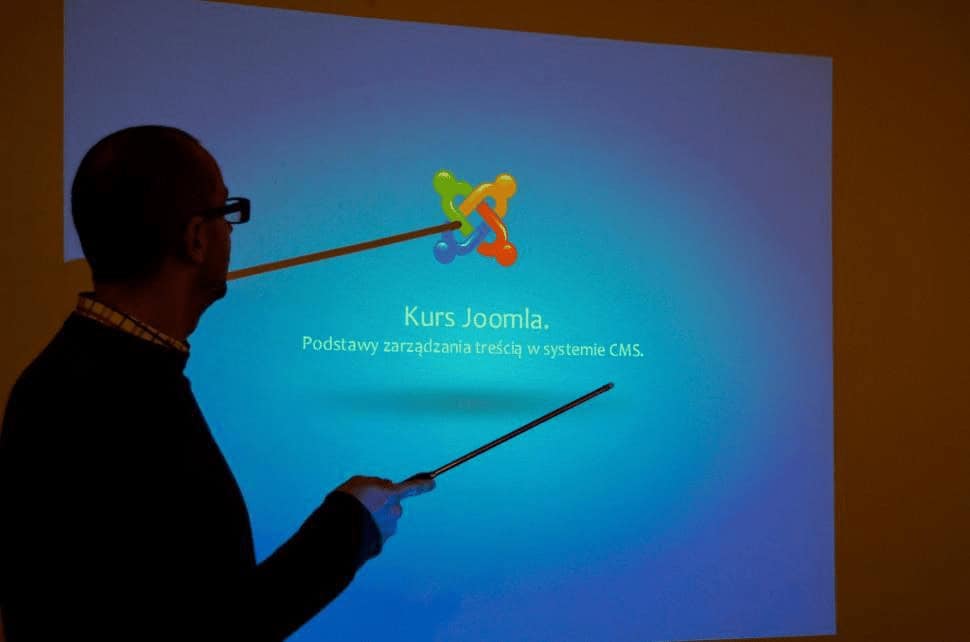
This is particularly helpful in webinars or tutorials that require referencing notes. To turn it on, select Slide Show → Use Presenter View. This will allow you to convey your narration while maintaining your flow and track your progression even if only the main screen is captured.
| Feature | Details |
|---|---|
| Dual View | Presenter sees notes; audience sees slides only |
| Notes Integration | Allows reference without displaying on screen |
| Timer and Navigation | Helps manage pacing during recording |
| Distraction-Free Output | Viewer only sees content, not your notes |
| Use Case | Webinars, online teaching, narrated videos |
9.Record Slide Show with Narration
Voice narration, slide timings, and even laser pointer movements can all be recorded with PowerPoint’s Record Slide Show feature. You would find this on the Slide Show tab. You have the option to start recording from the current slide or from the beginning, whichever you prefer.
This is very useful for making self-running shows out of your presentations since it captures all your explanations along with any animations or transitions.
Once exported as a video, it plays back exactly as recorded which is beneficial for use in online courses or automated briefings.
| Feature | Details |
|---|---|
| Slide-by-Slide Recording | Narrate each slide with transitions |
| Timing Capture | Records slide and animation timings |
| Replay Support | Plays exactly as recorded when exported |
| Recording Tools | Includes pen, laser pointer, and eraser |
| Use Case | Online lectures, e-learning content |
10.Trim Video Inside PowerPoint
As soon as you add a screen recording to a slide, you can edit out parts of the video within PowerPoint itself. Select the video, navigate to the Playback tab, and choose Trim Video. There is a basic editor that allows you to set the start and end time for playback.

This is particularly useful for eliminating errors, lengthy pauses, or any other irrelevant material. Trimming video frames enhances your messages, improves viewer engagement, and gives a more polished and professional touch to your video content.
| Feature | Details |
|---|---|
| Built-in Trimmer | Available under Playback tab → Trim Video |
| Start/End Adjustment | Cut unwanted sections at beginning or end |
| Non-destructive Editing | Does not affect original file quality |
| Preview Before Trimming | Playback preview window for precise editing |
| Use Case | Polishing recorded segments, removing mistakes |
Conclusion
To sum up, PowerPoint has a comprehensive range of tools for effective screen recording, including integrated recorders and voice-over options as well as video exportation.
Users can produce professional-grade materials with PowerPoint’s proprietary tools such as area selection, slide show recording, and video trimming, eliminating the need for additional programs.
Delivering polished content makes area selection useful for crafting professional videos. It is an outstanding tool for creating lectures, tutorials, or any type of presentation. These features make PowerPoint a great option.
FAQ
Can PowerPoint record my screen?
Yes, go to Insert → Screen Recording to capture screen activity.
Can I record audio too?
Yes, enable your microphone before recording to add narration.
Can I include webcam footage?
Not directly. Use external tools like OBS, then embed the video in PowerPoint.