
By using this site, you agree to the Privacy Policy and Terms of Use.
Accept
CoinworldstoryCoinworldstoryCoinworldstory
  • HOME
  • CRYPTO
    • AI
    • BOTS
    • ICO
    • AIRDROP
      • Featured Airdrops
    • Price Prediction
    • EXCHANGE
      • Best Centralized Exchange List 2026
      • Best Decentralized Exchange List 2025
    • ALTCOIN
    • Alt Coin Signal
    • Crypto Analysis
    • Bitcoin Loan
    • Bitcoin Mining
    • WALLETPRO
  • PR
    PR
    If You Looking For Submit Cryptocurrency Press Releases Than Coinworldstory Is Best Choice For Crypto Press Release Submission
    Show More
    Top News
    Why We Should Keep An Eye On Gaming For Bitcoin Adoption
    Why We Should Keep An Eye On Gaming For Bitcoin Adoption
    4 months ago
    How Blockchain, Telegram / TON / TVM technology and the OZOTOP project will revolutionize today's society
    How Blockchain, Telegram / TON / TVM technology and the OZOTOP project will revolutionize today’s society
    5 years ago
    Blockchain Platform Ethernity Chain Announces “The Messiverse” Has Arrived
    2 years ago
    Latest News
    SNC Scandic Coin: Regulated real‑world‑asset project launched on BingX, BitMart, L‑Bank and Biconomy
    1 week ago
    Nexpace Announces NXPC Buyback Program to Reinforce User-Centered Ecosystem Growth in MapleStory Universe
    2 weeks ago
    OSL Strengthens Asia’s Digital Asset Ecosystem with Listing of State-Supervised Gold-Backed Stablecoin USDKG
    2 weeks ago
    Sui Launches Gasless Stablecoin Transfers With Support From Fireblocks
    2 weeks ago
  • NEWS
    • Mining
    • Altcoins
    • Ban
    • BANKING/FINANCE NEWS
    • Bitcoin
    • Blockchain
    • CRYPTO CRIME
    • Ethereum
    • Exchange News
    • Government News
    NEWSShow More
    10 Hidden Liquidity Features Modern Brokers Secretly Use
    10 Hidden Liquidity Features Modern Brokers Secretly Use
    3 weeks ago
    10 Apps That Show What You Should Have Done Instead
    10 Apps That Show What You Should Have Done Instead
    2 months ago
    10 Best Crypto Conferences to Attend in 2026
    10 Best Crypto Conferences to Attend in 2026
    2 months ago
    Emerging Markets Favor Stablecoins Over Bitcoin
    Emerging Markets Favor Stablecoins Over Bitcoin
    3 months ago
    10 Solana DEXs With Lowest Slippage for Memecoin Trading
    10 Solana DEXs With Lowest Slippage for Memecoin Trading
    3 months ago
  • MORE
    • Guide
    • Only Best
    • Off Topic
    • Best Affiliate Marketing
    • Best Affiliate Programs
    • BOTS
    • Trusted Currency Exchanger Platform
    • Blockchain Games
    • Metaverse Review : Best Metaverse Program Review
    • Online Survey
    • Payment Platform
  • VPN
  • Contact Us
Reading: How To Create A Drop Down List In Excel (Step-by-Step Guide)
Share
Notification Show More
Font ResizerAa
CoinworldstoryCoinworldstory
Font ResizerAa
  • ADVERTISEMENT
  • SUBMIT PR
  • CONTACT
  • GUEST POST
  • ABOUT US
  • DMCA
  • SITEMAP
  • DISCLAIMER
  • PRIVACY POLICY
  • llms.txt
  • Newsletter
Search
  • HOME
  • CRYPTO
    • AI
    • BOTS
    • ICO
    • AIRDROP
    • Price Prediction
    • EXCHANGE
    • ALTCOIN
    • Alt Coin Signal
    • Crypto Analysis
    • Bitcoin Loan
    • Bitcoin Mining
    • WALLETPRO
  • PR
  • NEWS
    • Mining
    • Altcoins
    • Ban
    • BANKING/FINANCE NEWS
    • Bitcoin
    • Blockchain
    • CRYPTO CRIME
    • Ethereum
    • Exchange News
    • Government News
  • MORE
    • Guide
    • Only Best
    • Off Topic
    • Best Affiliate Marketing
    • Best Affiliate Programs
    • BOTS
    • Trusted Currency Exchanger Platform
    • Blockchain Games
    • Metaverse Review : Best Metaverse Program Review
    • Online Survey
    • Payment Platform
  • VPN
  • Contact Us
Have an existing account? Sign In
Follow US
© 2022 Foxiz News Network. Ruby Design Company. All Rights Reserved.

Home » How To Create A Drop Down List In Excel (Step-by-Step Guide)

Off Topic

How To Create A Drop Down List In Excel (Step-by-Step Guide)

Nancy P. Howard
Last updated: 26/09/2025 3:35 PM
Nancy P. Howard
12 months ago
Share
Disclosure: We are not a registered broker-dealer or an investment advisor. The services and information we offer are for sophisticated investors, and do not constitute personal investment advice, which of necessity must be tailored to your particular means and needs. !
How To Create A Drop Down List In Excel (Step-by-Step Guide)
SHARE

In this post, were going to unpack the little word to-a tiny tile that pieces together many other parts of English. Whether it shows where someone should go, explains why something happens, or makes a verb stay in the infinitive form, to pops up everywhere. ‘

Contents
  • What is a Drop Down List In Excel?
  • How To Create A Drop Down List In Excel
    • Step-by-Step Instructions
    • Step 1: Select the Cell
    • Step 2: Open Data Validation
    • Step 3: Choose List Option
    • Step 4: Confirm
  • Why Use Drop-down Lists
    • 1. Ensure Data Consistency
    • 2. Speed Up Data Entry
    • 3. Minimize Input Errors
    • 4. Improve Data Accuracy for Analysis
    • 5. Guide Users
    • 6. Supports Dynamic Lists
  • Best Practices When Working with Drop-down Lists
    • 1. Use Named Ranges or Tables
    • 2. Keep Lists on a Separate Sheet
    • 3. Use Dynamic Ranges for Growing Lists
    • 4. Add Input Messages and Error Alerts
    • 5. Keep List Items Simple and Clear
    • 6. Don t Mix Data Types
    •  7. Test Before Sharing
    •  8. Lock or Protect List Areas
    • 9. Use Dependent Lists Wisely
    • 10. Document the List Purpose Optional
  • Is there a limit to the number of items?
  • Is a formula needed to create dropdowns?
  • Conclusion
  • FAQ
    • Can I use a cell range instead of typing items?
    • Can I create a dynamic (auto-updating) drop-down list?
    • Can users type their own values in a drop-down list?

Knowing when and how to use it can sharpen your writing and cut down on common grammar slips. So, lets walk through the main jobs to performs and see them in action.

What is a Drop Down List In Excel?

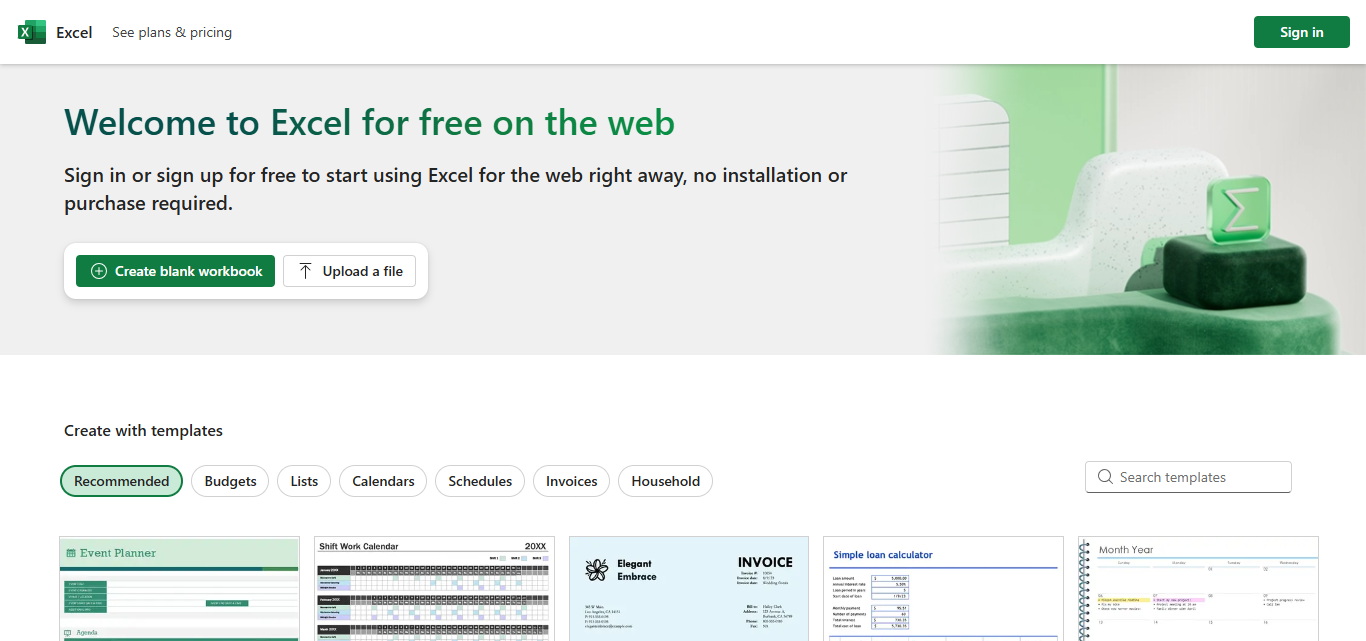
An Excel drop-down list lets you pick a value from a set menu instead of typing it out. That small change speeds up data entry and cuts spelling mistakes because everything comes from a single, trusted list.

It proves handy in forms, surveys, or any place where the answer needs to match company rules exactly. By using these lists, a team keeps the info looking uniform, works faster, and gains tighter control over what goes into every cell.
- Advertisement -
What is a Drop Down List In Excel?

The best part? You can tweak the list anytime or even tie it to a moving data range so the choices update on their own.

How To Create A Drop Down List In Excel

Step-by-Step Instructions

Step 1: Select the Cell

  • Click the cell where the list should appear (for example, cell B2).

Step 2: Open Data Validation

  • On the ribbon, tap the Data tab.
  • In the Data Tools group, choose Data Validation.

Step 3: Choose List Option

  • In the Settings tab:
    • Set the Allow box to List.
    • In Source type this, with no spaces:
    Apple,Banana,Mango

Step 4: Confirm

  • Hit OK.

Cell B2 now shows a tiny arrow. Click the arrow to pick one of the fruits.

Why Use Drop-down Lists

Why Use Drop-down Lists

1. Ensure Data Consistency

Typos and odd formatting never creep in. Because people pick from set choices, every entry looks the same-whether its Yes, yes, or YES. That uniformity matters when formulas and charts lean on the data later.

2. Speed Up Data Entry

Clicking an arrow is faster than pounding on the keyboard. Time really adds up when you fill dozens of similar rows or a large expense report.

3. Minimize Input Errors

By cutting free typing, the chance of wrong codes, misspellings, or blank cells drops sharply. Pair the list with simple validation and only allowed items ever land on the page.

- Advertisement -

4. Improve Data Accuracy for Analysis

Clean, steady data makes sorting, filtering, and pivoting work the way they should. Dashboards built on tidy lists run smoother and tell a clearer story.

5. Guide Users

Lists turn a complex form into a friendly tool. In shared templates, new team members know exactly what to pick instead of guessing.

6. Supports Dynamic Lists

Link the menu to a table range and the choices grow or shrink on their own. No more hunting for old options in the rule settings each time something changes.

- Advertisement -

Best Practices When Working with Drop-down Lists
Best Practices When Working with Drop-down Lists

1. Use Named Ranges or Tables

  • Why: Names or tables are quick to adjust and simple to call in formulas.
  • Tip: Hit Ctrl + T to turn a range into a table, then set your rule with =Table1[Options].

2. Keep Lists on a Separate Sheet

  • Why: A tidy sheet stops people from changing the list by accident.
  • Tip: Label the tab Lists, Sources, or something clear so nobody wonders where the data came from.

3. Use Dynamic Ranges for Growing Lists

  • Why: New entries automatically show up in the drop-down.
  • How: The easiest way is to keep your list as a table; if you must, try=OFFSET(A1, 0, 0, COUNTA(A:A), 1).

4. Add Input Messages and Error Alerts

  • Why: Friendly hints steer users in the right direction and catch errors early.
  • Where: Set these under Data Validation > Input Message and Error Alert tabs.

5. Keep List Items Simple and Clear

  • Why: Clear labels speed up choosing and cut down second-guessing.

6. Don t Mix Data Types

  • Why: Putting text, numbers, and dates in the same column leads to bad rules and headaches later.

 7. Test Before Sharing

  • Why: Checking the list yourself proves it runs correctly for every user.
  • Tip: Try entering a wrong value; if the validation kicks it out, youre golden.

 8. Lock or Protect List Areas

  • Why: Locks down the master data and stops folks from tampering with the rules.
  • How: Turn on Sheet Protection and mark those key cells as locked.

9. Use Dependent Lists Wisely

  • Why: Lets people pick step-by-step, like Country State City, so the choices stay neat.
  • How: Create named ranges and link them with INDIRECT() for each level.

10. Document the List Purpose Optional

  • Why: Clear notes explain why the list exists and how it works.
  • Tip: Add comments, quick tooltips, or a Help tab that walks users through it.

Is there a limit to the number of items?

Excel lets you stuff more than 30,000 entries into a drop-down menu, but scrolling through that mountain of choices is annoying and slow. When you have to shuffle through thousands of items, adding data takes forever and you might accidentally click the wrong thing.

A smarter fix is to break the list into clear groups and show only the smaller menus that matter at the moment.

For instance, set up a main drop-down for big categories such as Fruits or Vegetables, then link a second menu that fills in just the items for whatever category was picked. This two-step pick makes choosing faster and cuts down on mistakes whenever people handle huge spreadsheets.

Is a formula needed to create dropdowns?

No, you dont need a complicated formula to make a drop-down list in Excel. The whole thing is done using the easy Data Validation tool. First, click the cell where the list should appear, head over to the Data tab, tap on Data Validation, and pick List from the Allow drop-down.

After that, you can either type the items separated by commas or point to a range of cells that already holds the list. Because it doesnt call for any formula writing, the trick is fast, friendly, and open to every Excel beginner.

Conclusion

In short, adding a drop-down list in Excel is an easy trick that speeds up data entry and cuts mistakes. By using the Data Validation tool, you can build a list from typed words or cells-and you dont have to write a single formula.

Whether you are designing a form, tracking stock, or drafting a report, drop-down menus keep information steady and tidy. And because Excel lets you tweak, lock, and grow these lists whenever you need, your sheets look polished and work better for everyone.

FAQ

Can I use a cell range instead of typing items?

Yes. Instead of typing, enter the list items in cells (e.g., A1:A5), then in the Source box, type =A1:A5.

Can I create a dynamic (auto-updating) drop-down list?

Yes. Use a table or a dynamic named range so that new items added to your source list are included automatically.

Can users type their own values in a drop-down list?

Yes, if you don’t use strict validation. Under the Error Alert tab in Data Validation, you can allow other entries by turning off the alert.


Top 10 Security-First AI Agents for Banking & Finance 2026
10 Best AI SEO Tools for ChatGPT & Google Visibility Growth
10 Best ChatGPT SEO Strategies for Traffic Growth 2026
Top 10 AEO Strategies To Rank Higher in AI Search 2026
10 GEO Optimization Techniques For AI-Powered Search Engines 2026
Share This Article
Facebook Email Print
ByNancy P. Howard
Follow:
Nancy P. Howard has been working as a journalist at an online magazine in London for a year. She is also a professional writer in such topics as blogging, IT and marketing.
Previous Article How To Create A Successful Game Kickstarter: Step-by-Step Guide How To Create A Successful Game Kickstarter: Step-by-Step Guide
Next Article How To Create A Distribution List In Outlook – Quick & Easy Guide How To Create A Distribution List In Outlook – Quick & Easy Guide
TOP CRYPTO EXCHANGES

Best Crypto Exchanges

Kraken
Secure Trading
Visit
Bybit
Low Fees
Visit
HTX
Global Exchange
Visit
CoinSwitch
Easy INR Access
Visit
Poloniex
Altcoin Markets
Visit
TOP CRYPTO CASINOS
Best Crypto Casinos
Roobet
Roobet
Popular Casino
Visit
Stake
Stake
Top Sportsbook
Visit
BC.Game
BC.Game
Crypto Friendly
Visit
Rollbit
Rollbit
Casino + Trading
Visit
Duelbits
Duelbits
Instant Withdrawals
Visit

Find Us on Socials

TOP CRYPTO TOOLS
Best Crypto Tools
TradingView
Charts & Analysis
Visit
CoinGlass
Liquidation Data
Visit
CoinMarketCap
Market Tracking
Visit
DexScreener
DEX Analytics
Visit
Arkham
Wallet Tracking
Visit

Coinworldstory Ads

10 UK B2B SEO Hubs Excelling In Generative Search Growth
Artificial Intelligence
10 Top Silicon Valley AI Search Visibility Firms for Startups
Artificial Intelligence
10 Top Washington DC Reputation Agencies for AI Citation Control
Uncategorized Folder & File At Coinworldstory
10 Top Dublin GEO Agencies for Global Hyper-Scale Software Brands
Artificial Intelligence

Latest Published

10 Best AEO Tools For Voice and AI Search Optimization

10 Best AEO Tools For Voice and AI Search Optimization

3 days ago
10 Top Frameworks for Google AI Overview Product Rankings

10 Top Frameworks for Google AI Overview Product Rankings

5 days ago
10 Best AI Voice Search Tools for Smart Shopping Devices 2026

10 Best AI Voice Search Tools for Smart Shopping Devices 2026

6 days ago
10 Best Home Gym Equipment Essentials Under $500 Guide 2026

10 Best Home Gym Equipment Essentials Under $500 Guide 2026

1 week ago
nexo banner
  • ADVERTISEMENT
  • SUBMIT PR
  • CONTACT
  • GUEST POST
  • ABOUT US
  • DMCA
  • SITEMAP
  • DISCLAIMER
  • PRIVACY POLICY
  • llms.txt
  • Newsletter
Fake Airdrop Scam Explained: Protect Your Crypto Assets
Trending
10 Best Games To Play With Girlfriend Online – Top Picks
Trending
10 Best Mobile Games Supporting 120 FPS for Smooth Gameplay
Trending
CoinworldstoryCoinworldstory
Follow US
© Coinworldstory News Network. Cws Design Company. All Rights Reserved.
  • ADVERTISEMENT
  • SUBMIT PR
  • CONTACT
  • GUEST POST
  • ABOUT US
  • DMCA
  • SITEMAP
  • DISCLAIMER
  • PRIVACY POLICY
  • llms.txt
  • Newsletter
coinworldstory logo coinworldstory logo
Welcome Back!

Sign in to your account

Username or Email Address
Password

Lost your password?